






Are your product images/ photos not quite popping the way you’d like? Imagine effortlessly enhancing their colors, creating a visually stunning storefront that captivates shoppers.
In this latest post, we’ll unveil Shopify’s built-in image editor, allowing you to adjust colors, brightness, and more without needing fancy software. Ready to give your product images a professional touch and boost your sales? Keep reading!
How to Adjust Image Colors on Shopify
Step 1: Enter the Image Editor

Step 2: Adjust the image
In the image editor screen, there are a few options to help you change colors, including:
Draw:
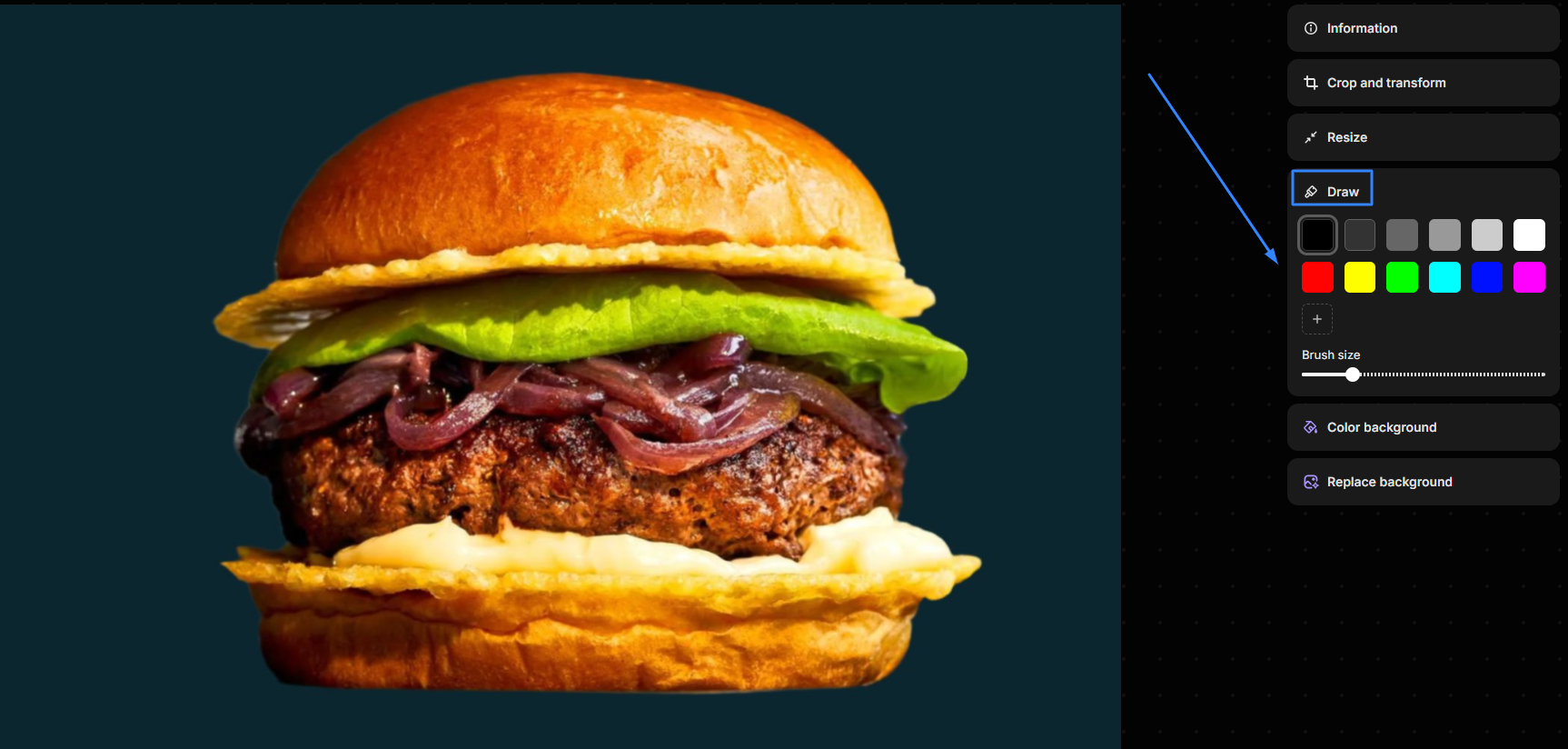
Color background:

Step 3: Preview and Save

Note:
Possible obstacles when adjusting image colors on Shopify
While making changes to the image colors on Shopify, you are likely to deal with several issues. In such cases, we will provide you with the best solutions to overcome these, including:
Theme Limitations:
Image Format & Quality:
Color Accuracy & Consistency:
Technical Limitations:
Unexpected Results:
Browser Cache:
By being aware of these potential obstacles and their solutions, you can effectively adjust image colors on Shopify and create visually appealing product displays that enhance your store’s overall aesthetic and user experience.
FAQs
Can I adjust the color of specific areas within an image, or does it apply to the entire image?
I'm seeing unexpected color shifts after adjusting an image. What could be the cause?
Can I undo color adjustments if I'm not satisfied with the result?
Are there any keyboard shortcuts for adjusting image colors in Shopify?
Does adjusting image colors affect the image file size or loading speed?
To sum up
Our article has shown you how to easily enhance the visual appeal of your Shopify store by adjusting image colors directly within the platform or using external tools. Have any questions about specific color adjustments or want to share your own tips for creating stunning product images? Feel free to leave a comment below!