






Is your Shopify store’s navigation menu a chaotic jumble that leaves customers feeling lost and frustrated? Don’t let your navigation be an obstacle to your eCommerce success! In this post, we will explain how to easily change the display order of your menu items and create a user-friendly experience that guides customers seamlessly through your Shopify store.
Let’s get started now!
4 Steps to Change the Display Order of Menu Items on Shopify
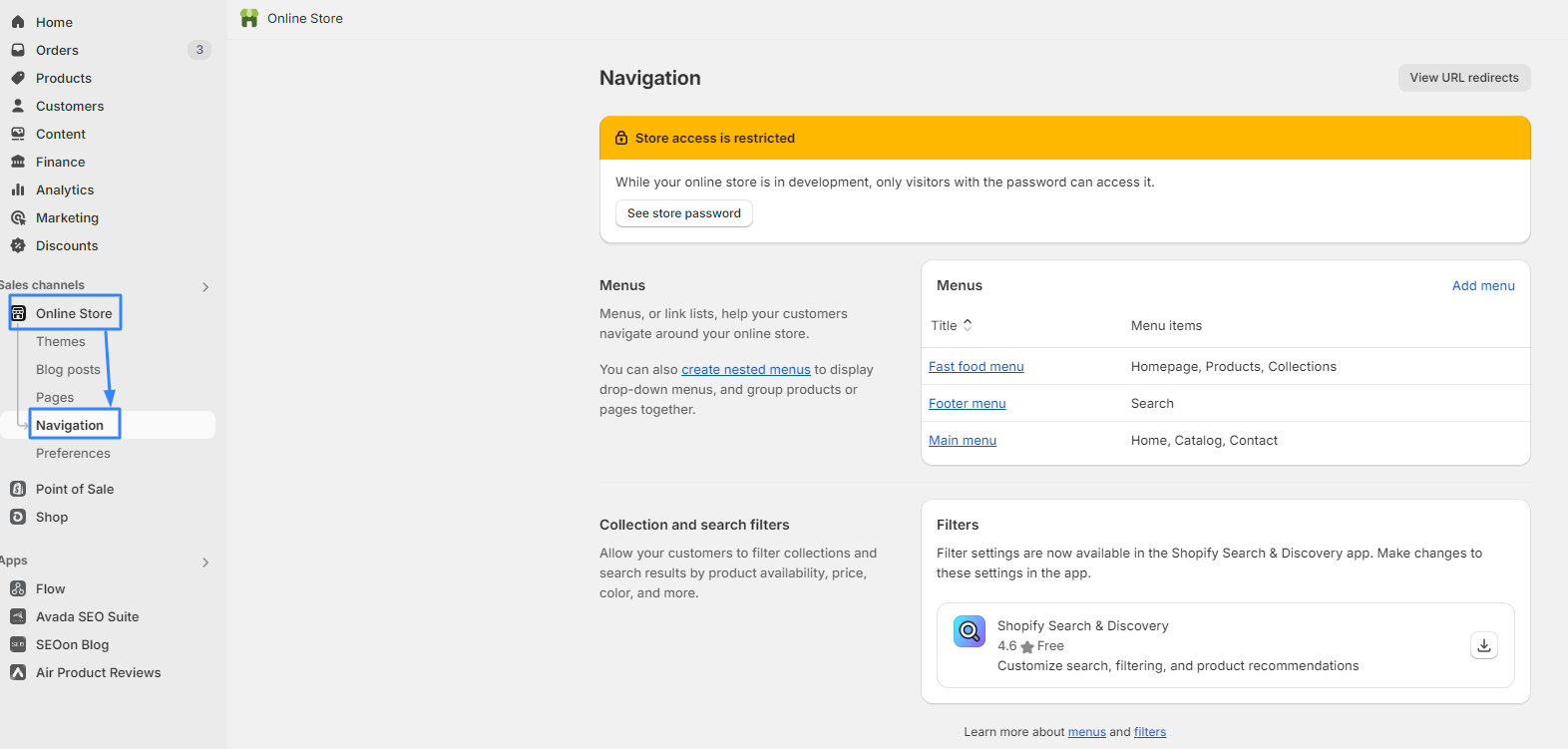
Step 1: Proceed to the Navigation Settings
- Log in to your Shopify admin.
- In the left-hand sidebar, click on "Online Store".
- Under the "Online Store" section, select "Navigation".
Step 2: Choose the Menu to Edit
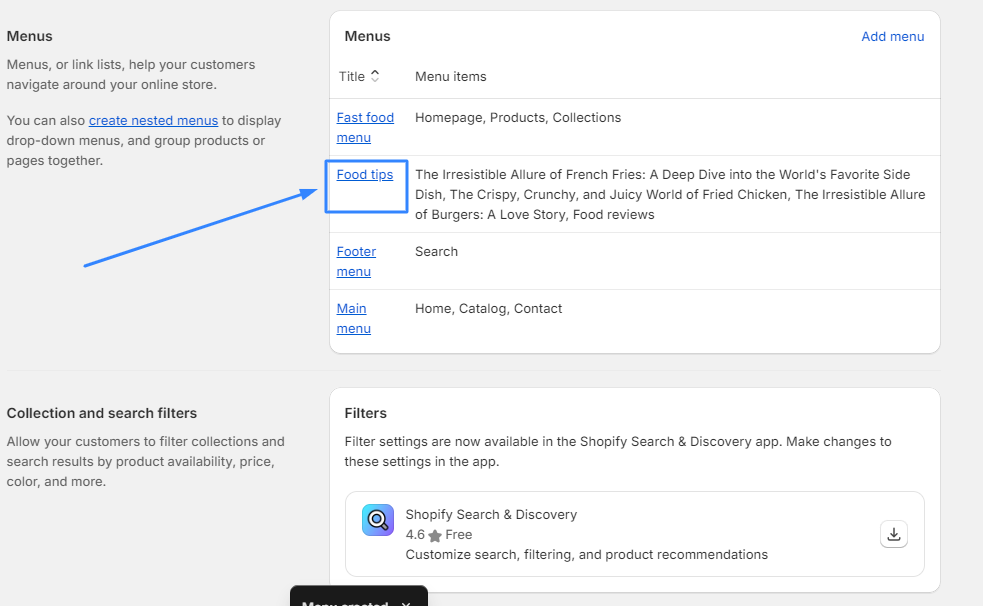
- In the "Menus" section, you'll see a list of your store's navigation menus (e.g., Main menu, Footer menu).
- Click on the title of the menu you want to modify.
Step 3: Rearrange Menu Items
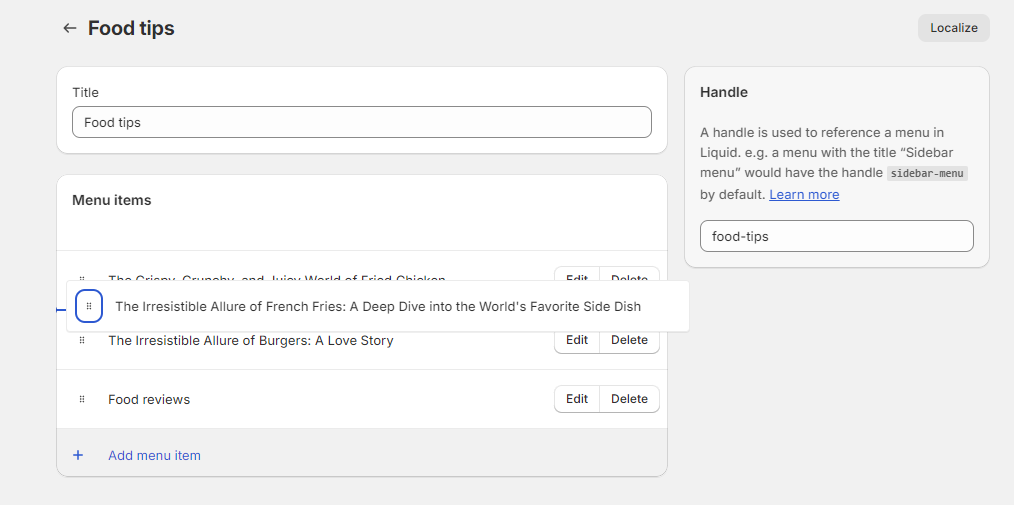
- In the "Menu items" section, you'll see a list of all the items in the selected menu.
- Next to each item, there's a six-dot icon (handle).
- Click and hold the handle, then drag and drop the item to its desired new position in the list.
Step 4: Save Changes
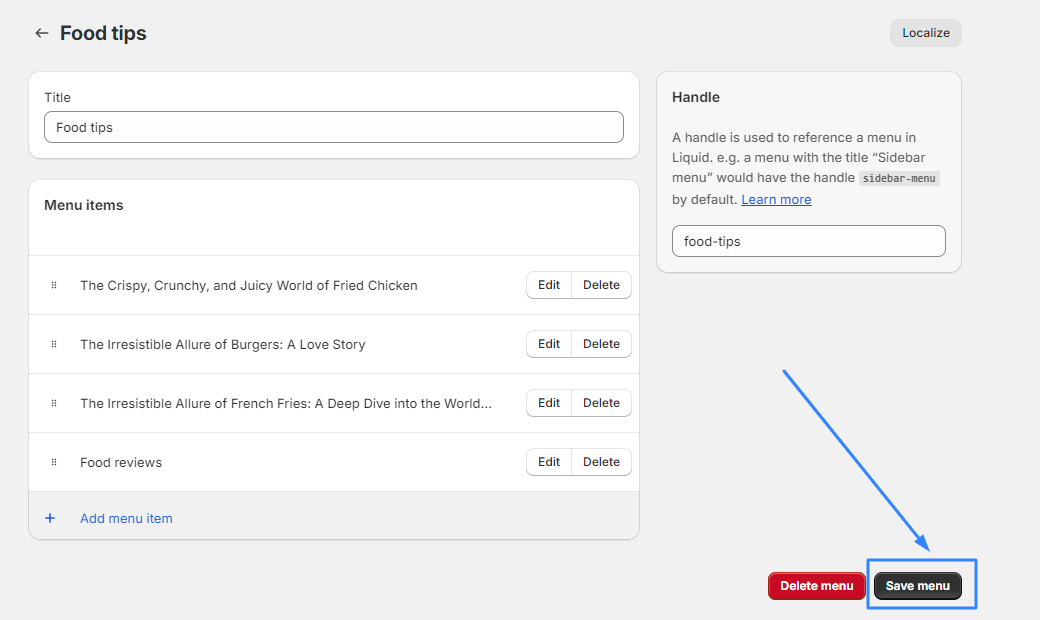
- Once you've rearranged the menu items to your liking, click the "Save menu" button to finish.
Note:
- Changes to the menu order will be reflected on your live storefront immediately after saving.
- You can also add, remove, or edit individual menu items from this page.
- If you're using a custom theme, the navigation settings might have unique configurations. Consult your theme's documentation if needed.
- Always preview your changes before saving to ensure the menu looks and functions as expected on different devices.
Troubleshooting guide
In case you encounter complex bugs or issues while changing the display order of menu items on Shopify, we would like to introduce a troubleshooting guide to get you covered instantly:
1. Menu Changes Not Saving:
- Browser Cache: Clear your browser's cache and data, then refresh the page. This often resolves issues where the Shopify admin isn't displaying the latest changes.
- Theme Editor: If you're making changes within the theme editor, make sure to hit the "Save" button at the top right before leaving the editor.
- App Conflicts: If you have third-party navigation or menu apps installed, they might override Shopify's default settings. Temporarily disable these apps to see if that resolves the issue.
2. Drag-and-Drop Not Working:
- Browser Compatibility: Try a different browser or update your current one to the latest version. Some older browsers might have issues with the drag-and-drop functionality.
- JavaScript Errors: Check your browser's console for any JavaScript errors that might be preventing the drag-and-drop from working. If you see errors, consult a developer or Shopify support.
- Theme-Specific Issues: Some themes might have custom navigation structures that don't use the standard Shopify drag-and-drop method. Refer to your theme's documentation for specific instructions.
3. Unexpected Menu Behavior on Storefront:
- Theme Caching: If you've made changes but they aren't appearing on your live store, try clearing your theme cache in the Shopify admin under Online Store > Themes > Actions > Edit code.
- Conflicting CSS: Custom CSS styles might be overriding the default menu styling, leading to unexpected behavior. Use your browser's developer tools to inspect the menu elements and identify any conflicting styles.
FAQs
Can I rearrange menu items on Shopify using my mobile phone?
Does changing the order of menu items affect my store's SEO?
Can I create nested menus or submenus on Shopify?
What happens if I accidentally delete a menu item while rearranging them?
Are there any third-party apps that can help me manage my Shopify menus more effectively?
In conclusion
This guide has demonstrated how to effortlessly rearrange your Shopify menu items to enhance your store’s navigation and user experience. Have you implemented any creative menu arrangements in your Shopify store? Share your tips and tricks in the comments below!