





Connecting your Shopify store to Facebook Shop is one of the smartest ways to expand your reach in 2026. With Meta’s massive ecosystem — from Facebook Marketplace to Instagram Shopping — your products can show up where people already hang out and shop.
The process is straightforward and manageable right from your Shopify dashboard. Whether you're looking to increase visibility, sync your product catalog, or convert followers into loyal customers, this guide will walk you through every step of setting up Facebook Shop on Shopify—no technical expertise required.
What is Facebook Shop?
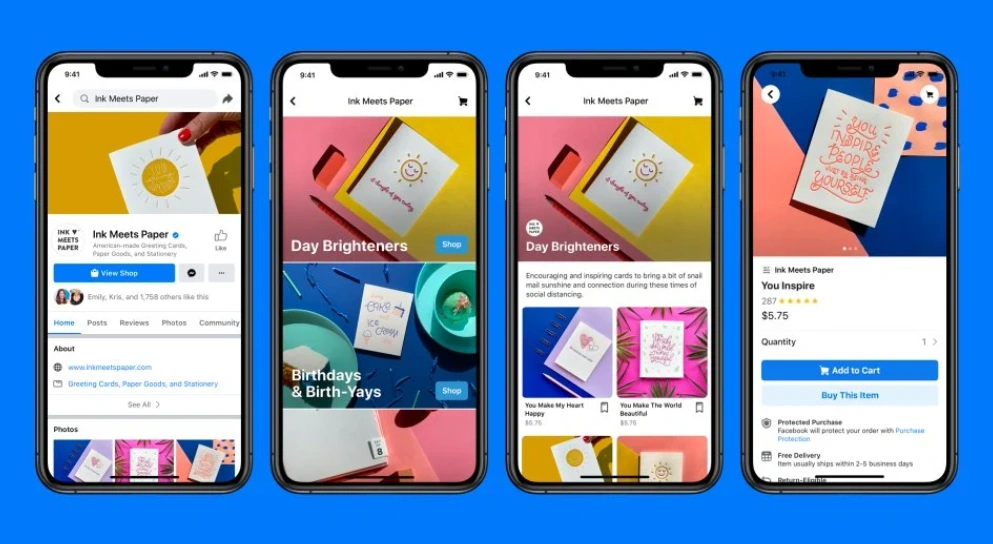
Facebook Shop is Meta’s built-in storefront feature that lets businesses sell products directly through Facebook and Instagram. It offers a fully native shopping experience, meaning customers can browse, save, and even check out — all without leaving the apps they’re already using.
Launched in May 2020, Facebook Shops quickly became a game-changer for small and mid-sized businesses. According to Meta, over 1 million businesses had set up Shops within the first few months of the rollout, and the platform has continued to grow since — especially as social commerce becomes the norm in 2026.
A prime example is Ink Meets Paper, a small stationer specializing in letterpress greeting cards. After launching their Facebook Shop, they optimized the in-app experience with smart features like direct checkout and call-to-action buttons — making shopping smooth and hassle-free for customers.
Benefits of Connecting Shopify to Facebook Shop
Setting up your Shopify store into Facebook Shop brings major wins — from bigger audiences to smoother purchases. Here’s why it's worth the hype:
- Access to billions of users: Facebook alone has over 2.9 billion monthly active users, and roughly 250 million shops are active on the platform — meaning your products can reach people where they already hang out.
- In-app seamless shopping experience: With Facebook Shops, customers can browse, add products to their cart, and checkout without ever leaving the app, cutting out friction and boosting conversions.
- Higher conversion rates with dynamic ads: You can run dynamic product ads that show customers the exact items they viewed — nudge them back to buy, and that kind of personalized ad strategy can significantly lift ROI.
- Advanced retargeting and customer insights: Integrating Shopify with Facebook’s pixel and data tools gives you retargeting power and user-behavior insights — that data-driven boost can help improve ad performance and re-engagement success.
- Cost-effective and easy to set up: Opening a Facebook Shop is free — no setup fees — and Shopify automates the connection. You only pay standard Shopify and transaction fees, with no extra layer from Facebook.
- Boost in brand trust and social proof: When your store feels native on Facebook and Instagram, visitors are more likely to trust in-app checkout options and live chat support, helping build credibility and repeat business.
What Are the Requirements for Creating a Shop on Facebook?
Before you dive into syncing your Shopify store with Facebook Shop, ensure you’ve got the essentials lined up. Here’s what you need in 2026 to get started:
- A Facebook Business Manager account: This is where you'll manage your assets like Pages, catalogs, ad accounts, and Pixels. You can create a Facebook Business Manager account.
- A published Facebook Page for your business: Your Page must be connected to your Business Manager and fully published (not under review or unpublished).
- A Meta Commerce Manager account: This dashboard helps you manage your catalog, view orders, and customize your Shop layout.
- A Shopify store with published products: Make sure your store is live and your products are visible. Facebook won’t approve empty or unpublished catalogs.
- Installed “Facebook & Instagram” app by Meta in Shopify: This app handles product syncing, pixel setup, and catalog connection. Find it under Shopify Admin > Apps.
- Products that follow Facebook’s Commerce Policies: No restricted items (like digital goods, supplements, or adult products).
- A connected domain (custom Shopify domain): You must verify your domain on Facebook via Meta tag, DNS, or HTML upload — this is required for full Shop functionality and ads.
How to Set Up Facebook Shop with Shopify
Ready to connect your store to Facebook and start selling across Meta platforms? Here’s your complete breakdown of how to set up Facebook Shop with Shopify — no fluff, just the real steps to get it live.
Step 1: Install the Facebook & Instagram App in Shopify
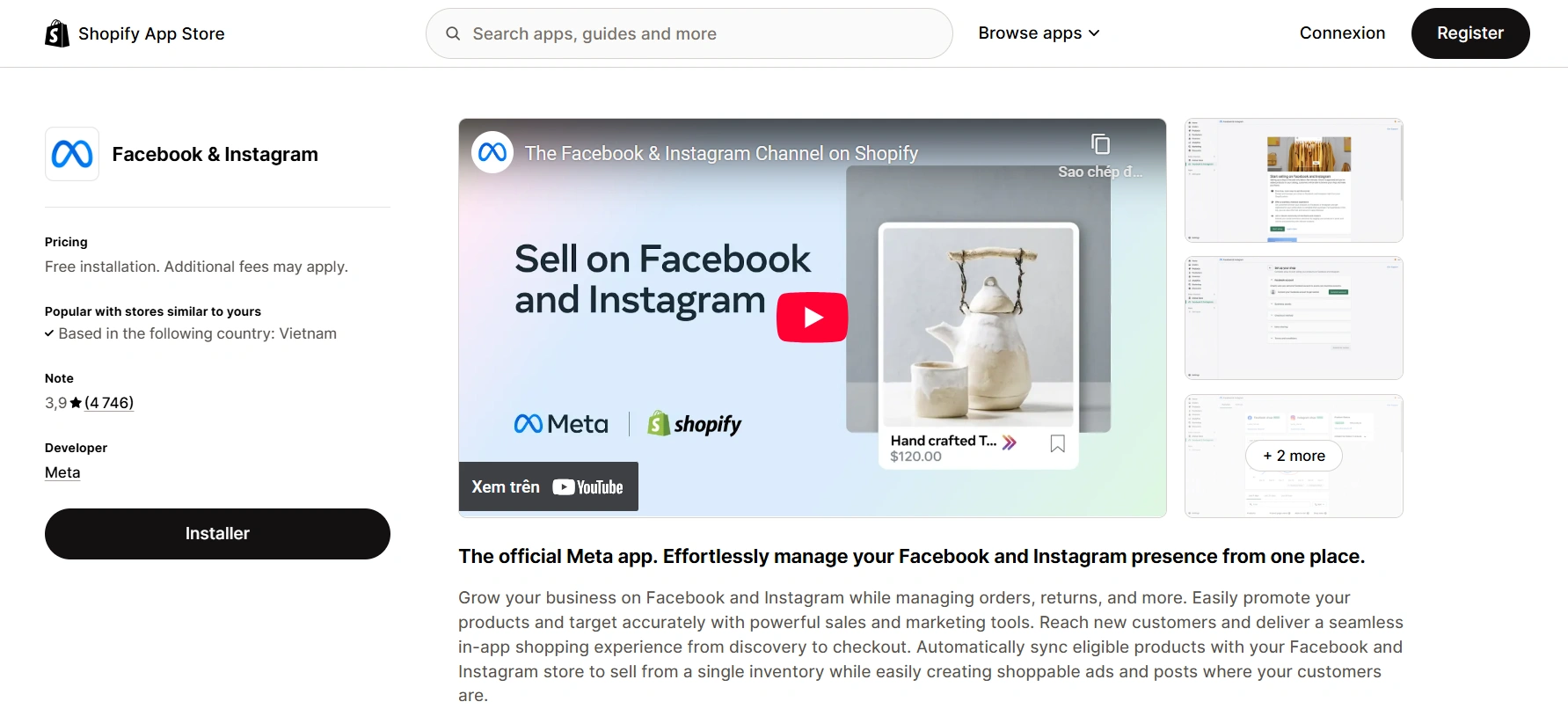
- Install the app.
- Once installed, click “Start Setup” to begin the onboarding flow.
Step 2: Connect Your Facebook Business Assets
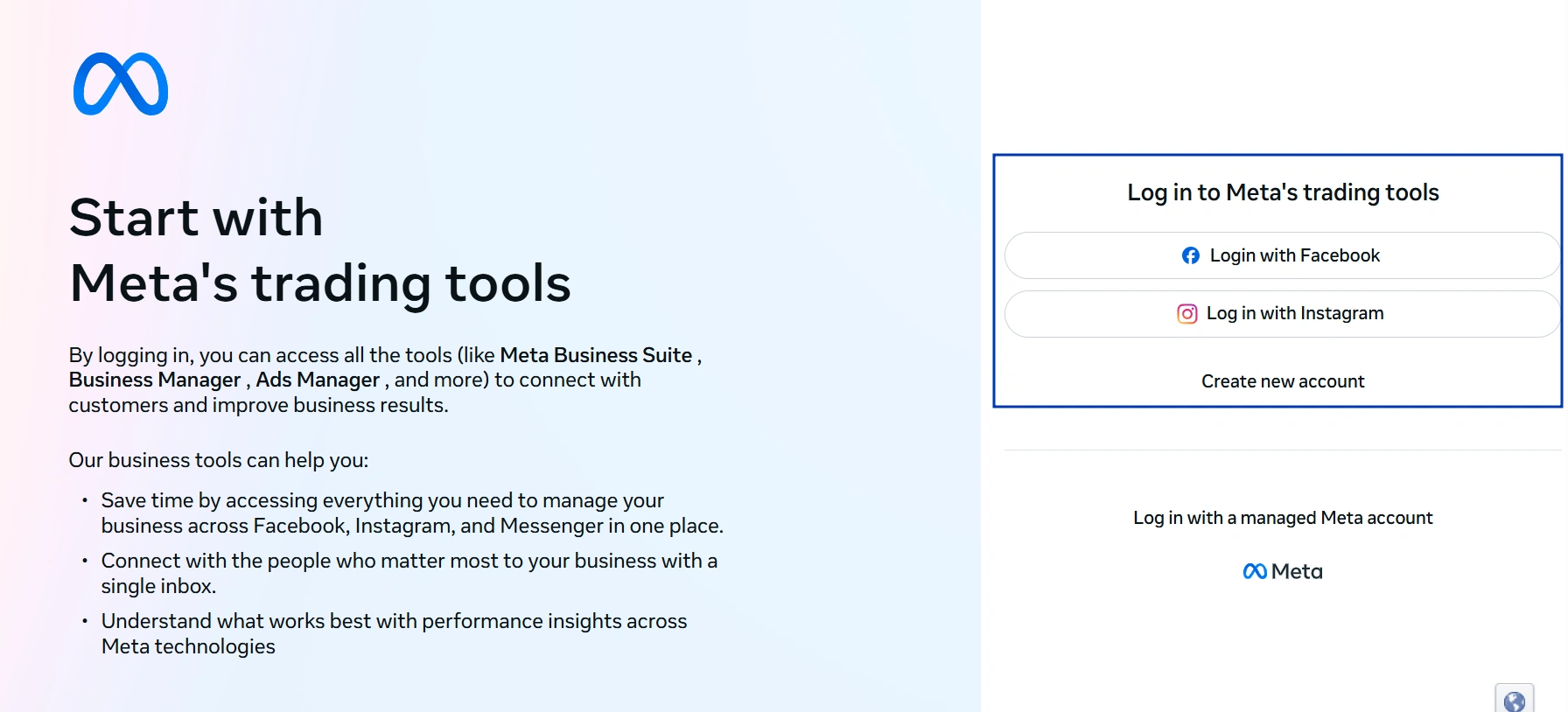
You’ll be prompted to log into your Facebook Business Manager and connect the following:
- Facebook Business Manager – your main admin hub
- Facebook Page – must be published
- Ad Account – for running product ads
- Commerce Account – to manage your Shop
- Facebook Pixel – for tracking user activity and optimizing ads
Step 3: Choose Your Target Sales Channel
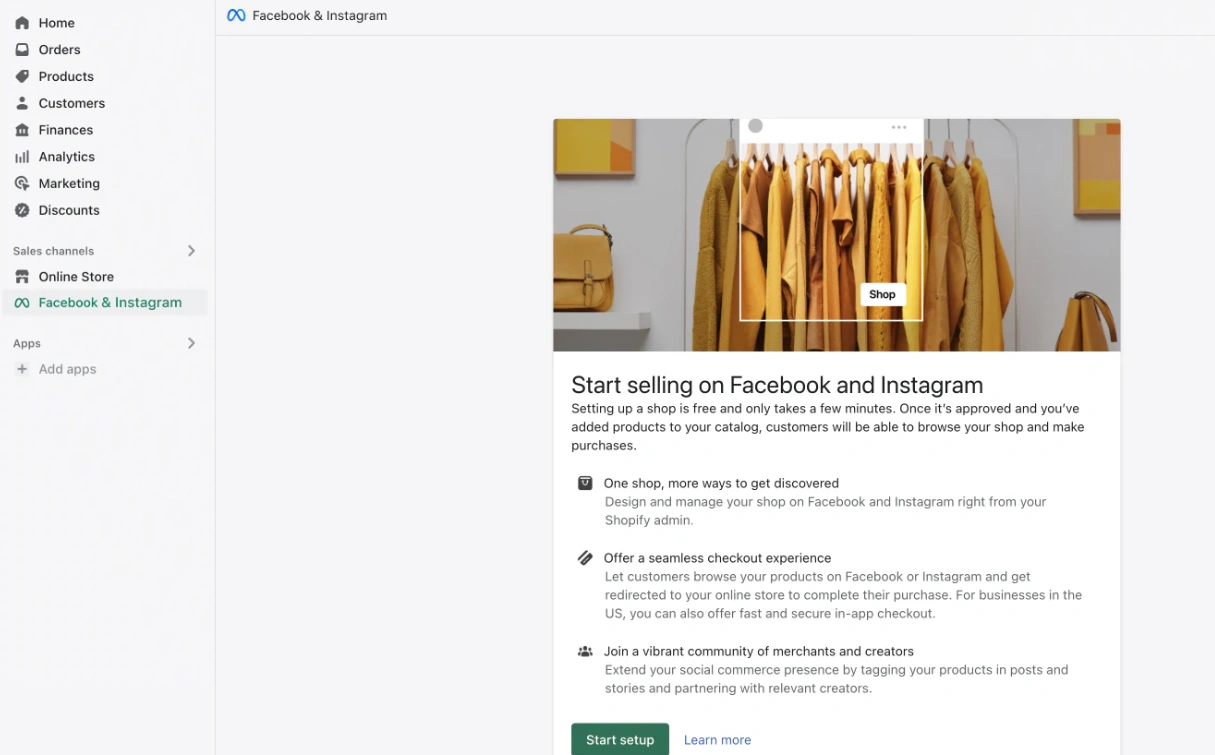
In the app setup, you’ll be asked to connect one of the following:
- Facebook Shop – allows people to browse and buy directly from Facebook
- Instagram Shopping – if you also want your catalog to appear on Instagram
- Facebook Ads Only – skip Shops and just run product ads
Step 4: Sync Your Product Catalog

- The app will automatically create and connect a Facebook product catalog.
- You can choose which products or collections to sync (or sync your full catalog).
- Shopify will handle ongoing sync — any updates (price, stock, title) will auto-update on Facebook.
Tip: If your product doesn’t appear on Facebook, double-check it meets Meta’s Commerce Policies.
Step 5: Set Your Target Country & Checkout Method
- Choose the country or region where you’ll sell via Facebook Shop.
- Select your checkout method:
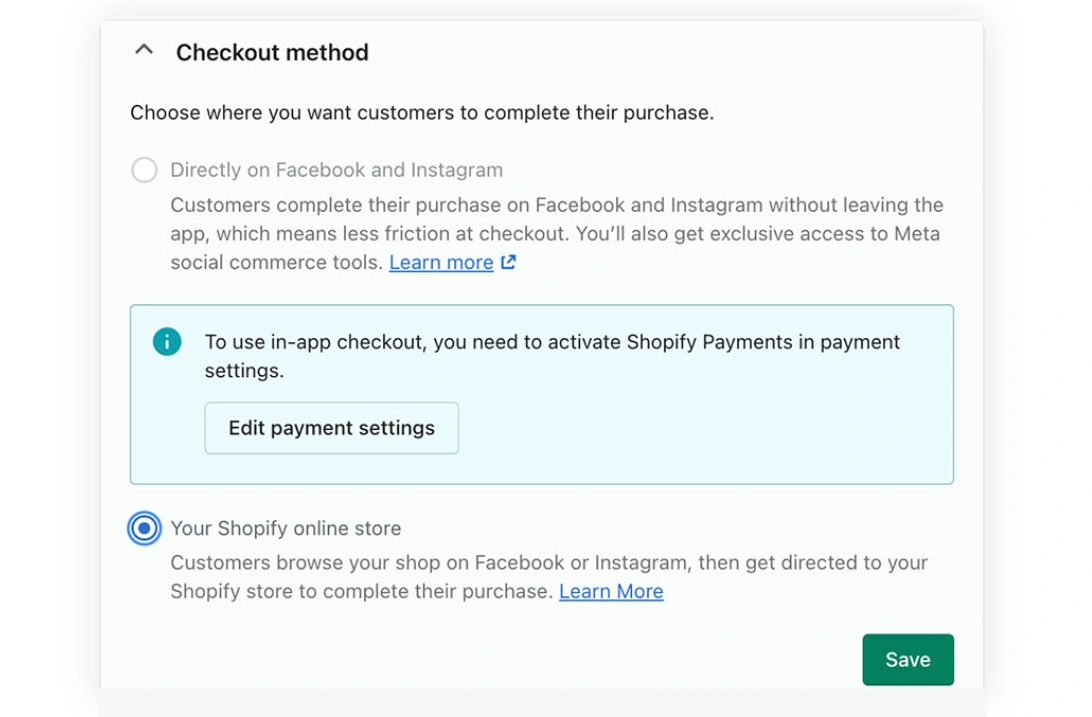
- Checkout on your website (Shopify) — ideal for most stores
- Checkout on Facebook/Instagram — available only in supported countries like the US
Step 6: Submit for Facebook Review
Once everything is linked and your products are synced:
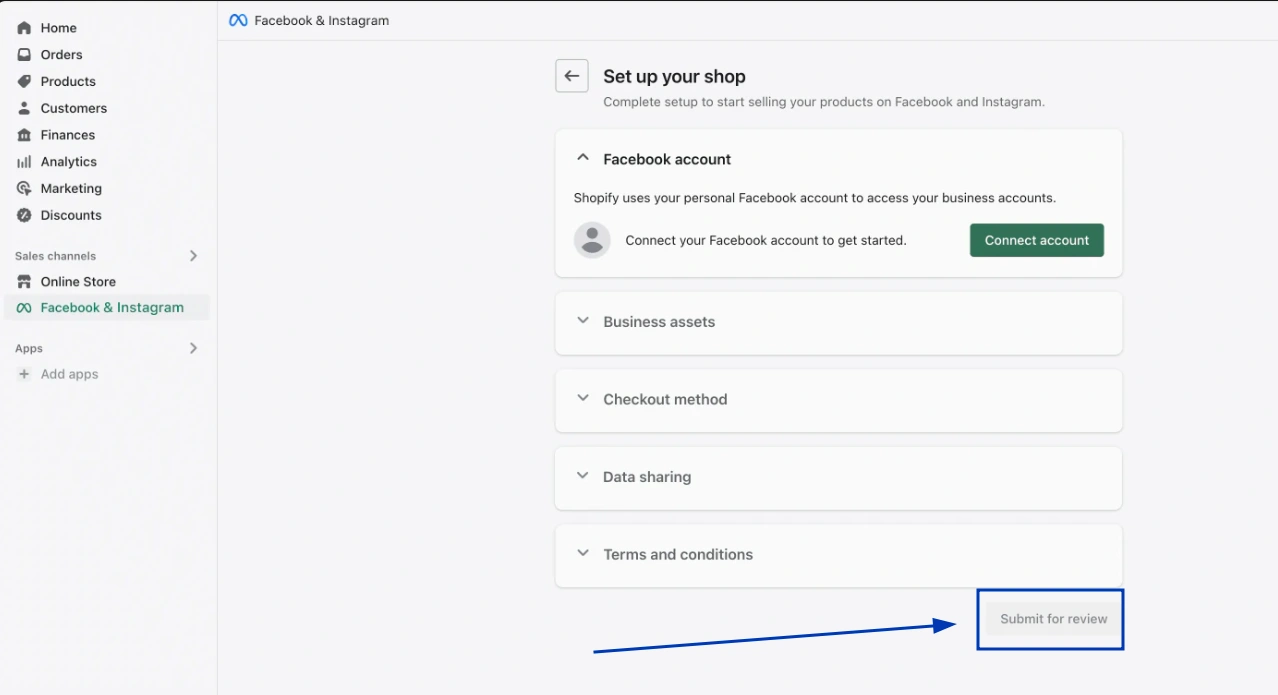
- Click Submit for Review
- Facebook will review your Shop and catalog to ensure compliance
When approved, your Facebook Shop goes live — and your products are instantly discoverable on your Facebook Page!
Bonus: Verify Your Domain
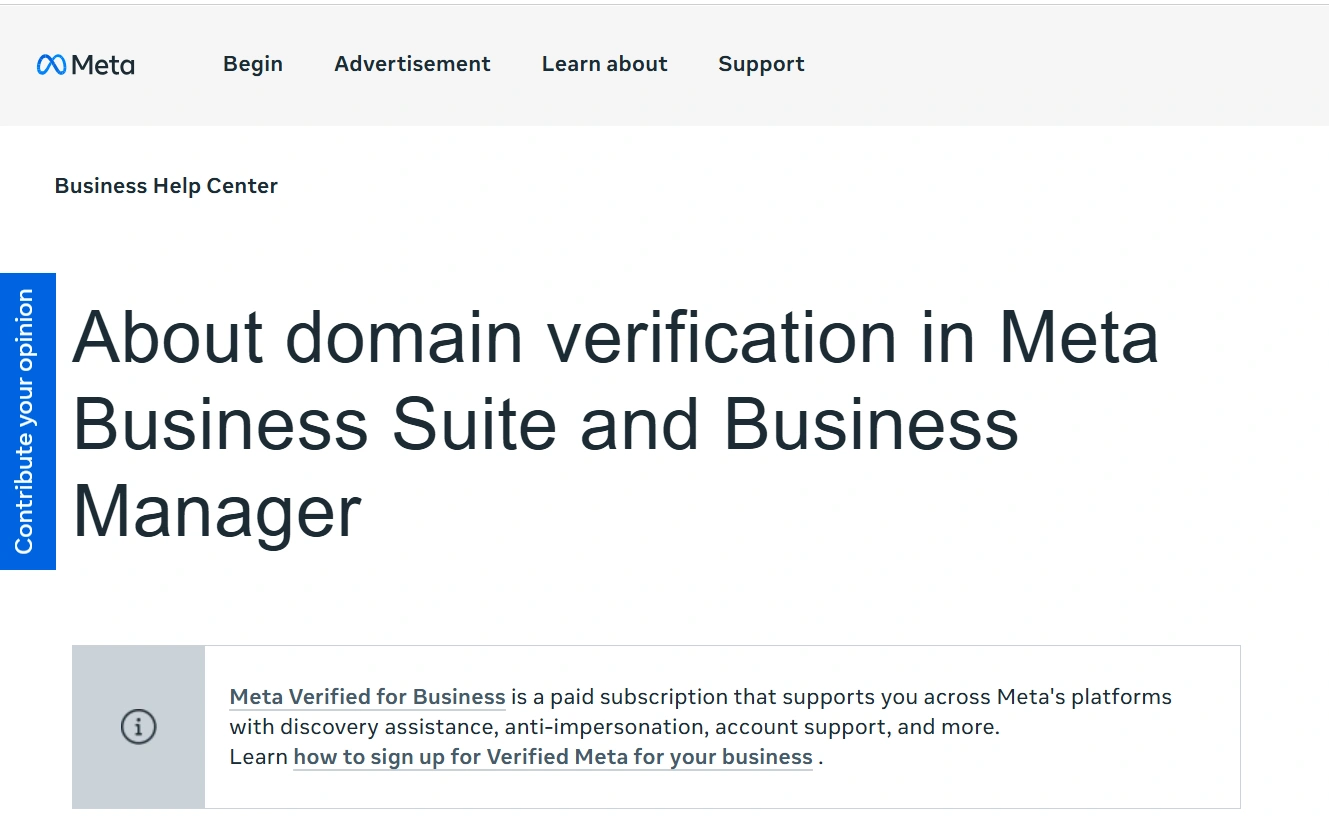
Before running ads or tracking events via Pixel, Facebook requires domain verification:
- Go to Business Manager > Brand Safety > Domains
- Add your Shopify domain
- Choose Meta Tag verification
- Paste the code into your Shopify theme’s section (theme.liquid), then save
- Return to Facebook and click Verify
Details on how to verify a domain name.
How to Manage Your Facebook Shop with Ecommerce Platforms
Once your Facebook Shop is set up with Shopify, day-to-day management becomes surprisingly smooth — especially when your eCommerce platform (like Shopify) handles all the backend syncing.
Product Updates Sync Automatically
Whenever you add, edit, or remove products in Shopify, those changes reflect in your Facebook Shop — no double work required. This includes:
- Product titles, descriptions, and pricing
- Images and inventory levels
- Product availability and visibility
Order Management Happens in Shopify
All purchases made through your Facebook Shop (with Shopify checkout) show up directly in your Shopify Orders tab. You can:
- Fulfill and track orders as usual
- Send confirmation emails
- Manage returns or customer service
Track Performance with Insights
Shopify and Facebook both offer detailed analytics. You can:
- Use Meta Business Suite to monitor product views, clicks, and conversions
- Use Shopify Analytics to track referral traffic, sales by channel, and ad ROI
- Combine both for a full-funnel view of customer behavior
Catalog Maintenance & Compliance
Stay on top of:
- Product disapprovals from Facebook (due to policy violations)
- Inventory mismatches or out-of-stock items
- New products that need syncing manually if auto-sync is disabled
How to Tag Products on Facebook & Instagram
Once your Shopify store is connected to Facebook Shop and your catalog is synced, you can start tagging products in posts, Stories, Reels, and even Lives on both Facebook and Instagram.
On Instagram
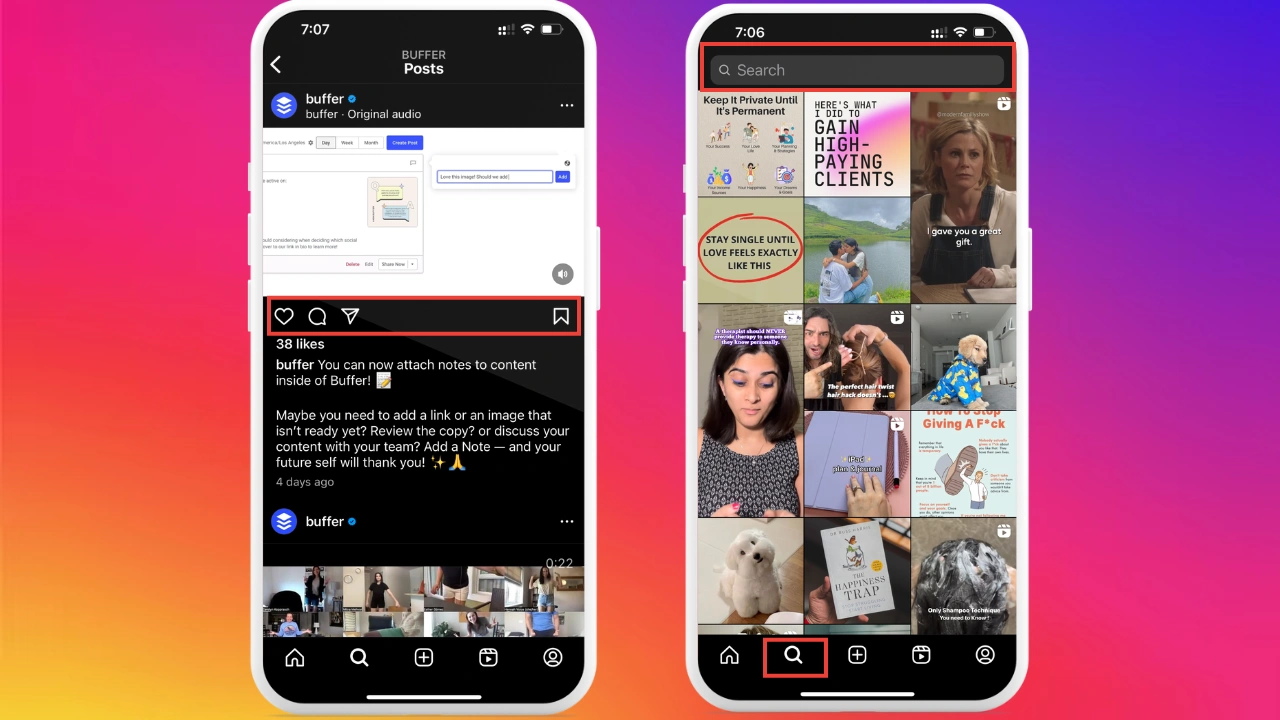
- Switch to a Business or Creator Account: Go to Settings > Account > Switch to Professional Account if you haven’t already.
- Enable Instagram Shopping: Go to Settings > Business > Shopping. Select your product catalog (automatically synced via Shopify).
- Create a Post or Reel: Upload your content as usual.
- Tag Products: On the final screen before publishing, tap Tag Products
→ Select the item from your catalog
→ Position the tag on the image
On Facebook

- Go to Meta Business Suite (or Facebook App for Business): Navigate to Content > Posts or start a new post from your business Page.
- Upload Your Photo or Video: Just like any regular post.
- Click “Tag Products”: Choose items from your synced catalog.
- Publish Your Post: Tagged products will be clickable and direct users to your Facebook Shop or Shopify checkout, depending on your setup.
Best Practices for Facebook Shop Success
Wanna make your Facebook Shop thrive? These tried-and-true moves are the blueprint to getting clicks, adds-to-cart, and conversions — all while keeping your vibe authentic and smart.
1. Optimize Your Visual Content
- 93% of consumers say visual appearance is the top deciding factor when shopping online.
- Lifestyle visuals convert better — just ask brands like Rothy’s, who grew to 300K+ followers using natural, real-world content.

2. Leverage Retargeting with Pixel + Catalog
- Dynamic product ads can help brands recover up to 26% of abandoned carts.
- Stores like Gleam Jewels saw a 6.5x ROAS using retargeting ads that re-showed items shoppers viewed but didn’t buy.

3. Build Social Proof Through UGC
- 79% of shoppers say user-generated content (UGC) highly influences their buying decisions.
- 87% of marketers say UGC is more trusted than brand-produced content.
4. Keep Your Catalog Clean & Synced
- Disapproved items, out-of-stock products, or broken variant links can kill your reach and disrupt ad campaigns.
- Facebook Shops with consistent catalog health get better visibility across Meta placements.
5. Test, Tweak, and Track With Insights
- Facebook & Instagram Shops now offer native insights, showing top-viewed products, conversion rates, and CTRs.
- Brands that A/B test creative, pricing, and product placement report 2–4x improvements in click-
- through rates over time.
Final Thoughts
Connecting your Shopify store to Facebook Shop is more than just a technical setup — it's a smart sales strategy. By bridging your storefront with Meta’s massive user base, you're opening the door to seamless shopping experiences, better targeting, and powerful brand visibility.
Frequently Asked Questions
How to set up a Facebook shop on Shopify?
You can set it up by installing the Facebook & Instagram app from Shopify, connecting your Facebook Business Manager, syncing your product catalog, and publishing your Shop through Commerce Manager. The integration does most of the heavy lifting for you.
Can I sell on Facebook with Shopify?
Yes. Shopify directly integrates with Facebook via Meta’s tools, allowing you to display your products on Facebook Shop, tag them in posts, and even run ads — all synced from your Shopify catalog.
How to set up a Facebook shop in Australia?
The process is the same globally. Just make sure your Business Manager region and product availability are set to Australia, and your products meet Meta’s commerce policies. Payments and shipping options must also comply with local regulations.
Why is my Facebook account not eligible for setup Shopify?
This usually happens when your Facebook Business Manager lacks verification, your page doesn’t meet Meta’s Commerce Eligibility Requirements, or the account is restricted. Check that your business info is complete, follow all Meta policies, and use a verified Business Manager.