






Want to know how to insert a Pinterest button to your Shopify store? In this guide, we’ll show you the simple steps to easily add a Pinterest button, helping customers share your products and drive more traffic to your store.
To insert a Pinterest button to your store
- Step 1: Select Themes
- Step 2: Press on Edit code
- Step 3: Select the Add a new snippet link
- Step 4: Create the Pinterest snippet
- Step 5: Paste the code
- Step 6: Save
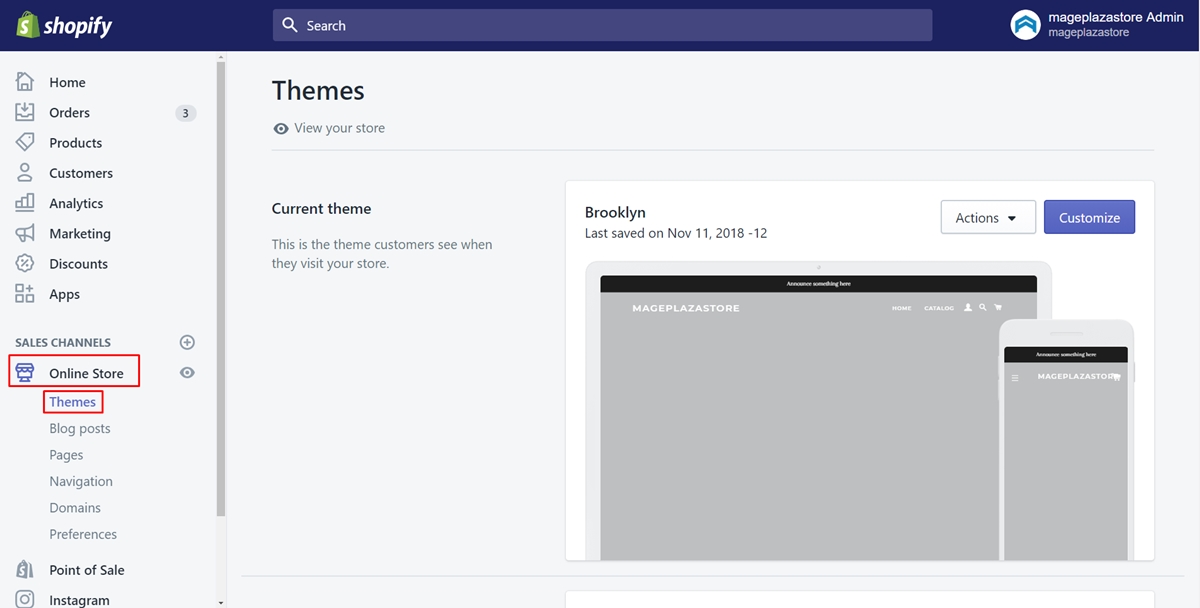
Step 1: Select Themes
Sign in your Shopify account and go to the admin page. Click on Online Store and select Themes.
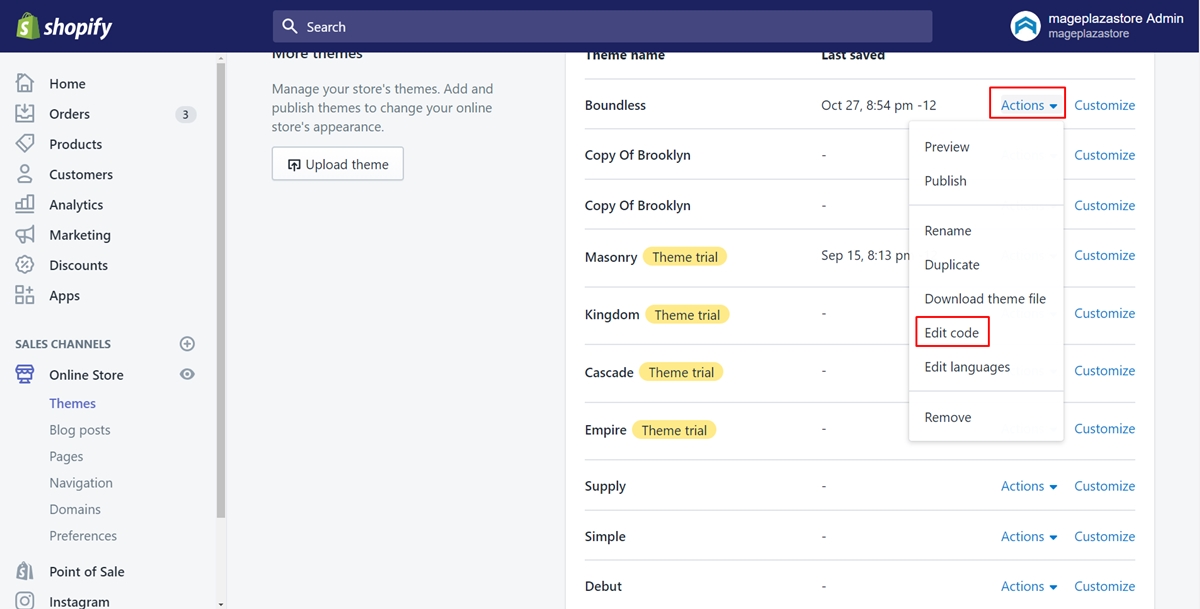
Step 2: Press on Edit code
All the themes you have will appear. Make sure to select one theme. Then, tap on the Actions button and press on Edit code.
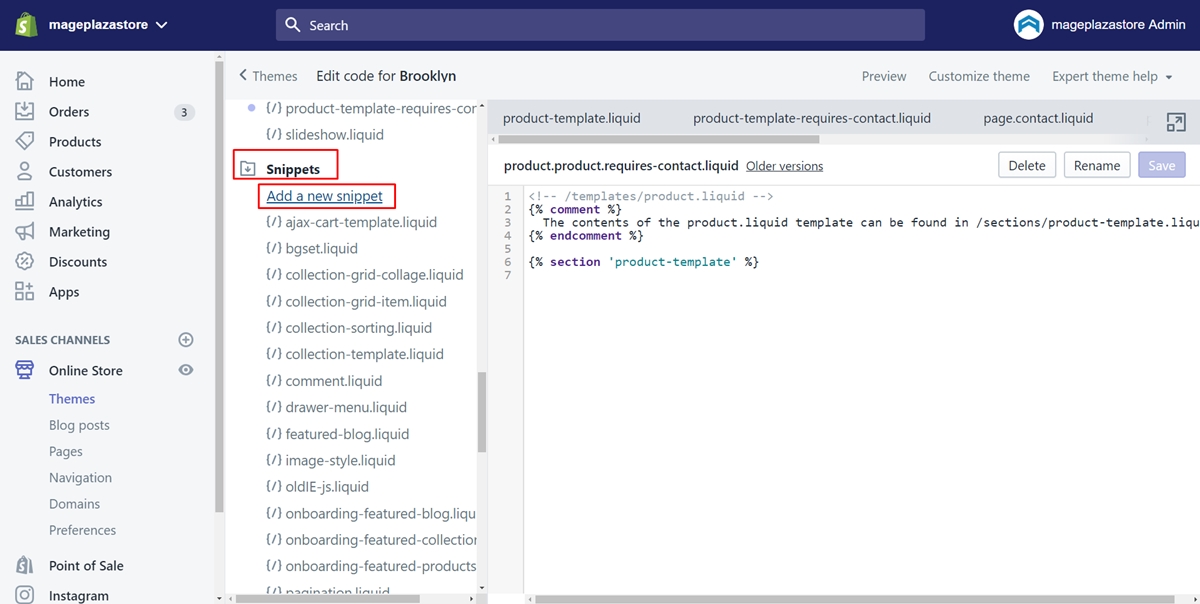
Step 3: Select the Add a new snippet link
Look for the Snippets directory. Afterward, there are some files showing. Select the Add a new snippet link.
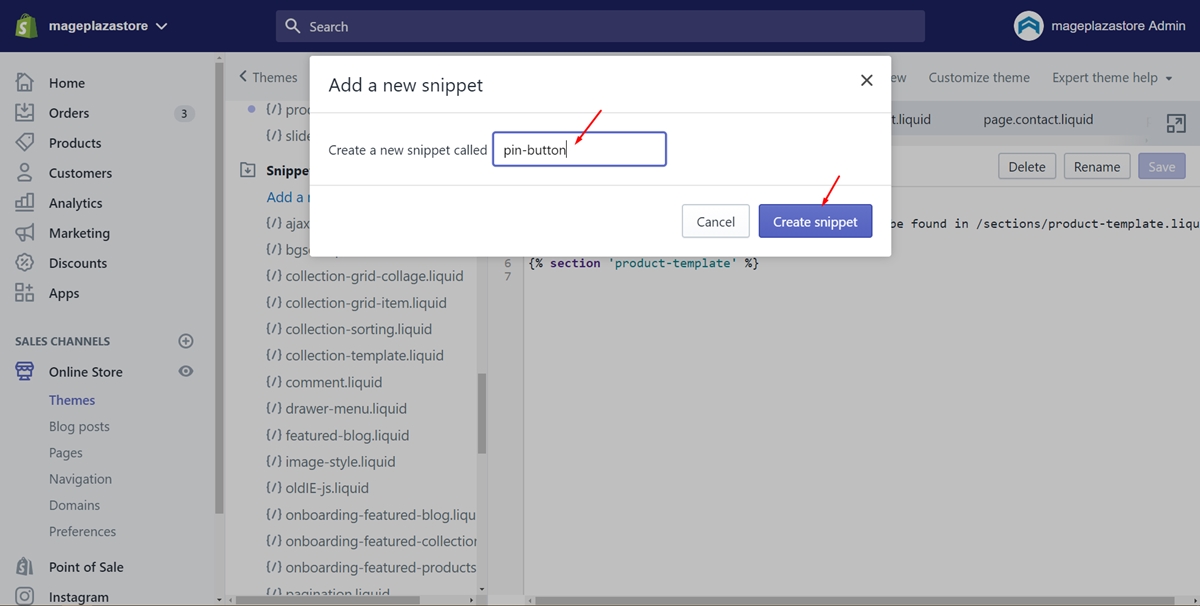
Step 4: Create the Pinterest snippet
A new dialog will be displayed. In this step, you will create the Pinterest snippet by entering pin-button into the textbox. Then, tap on Create snippet.
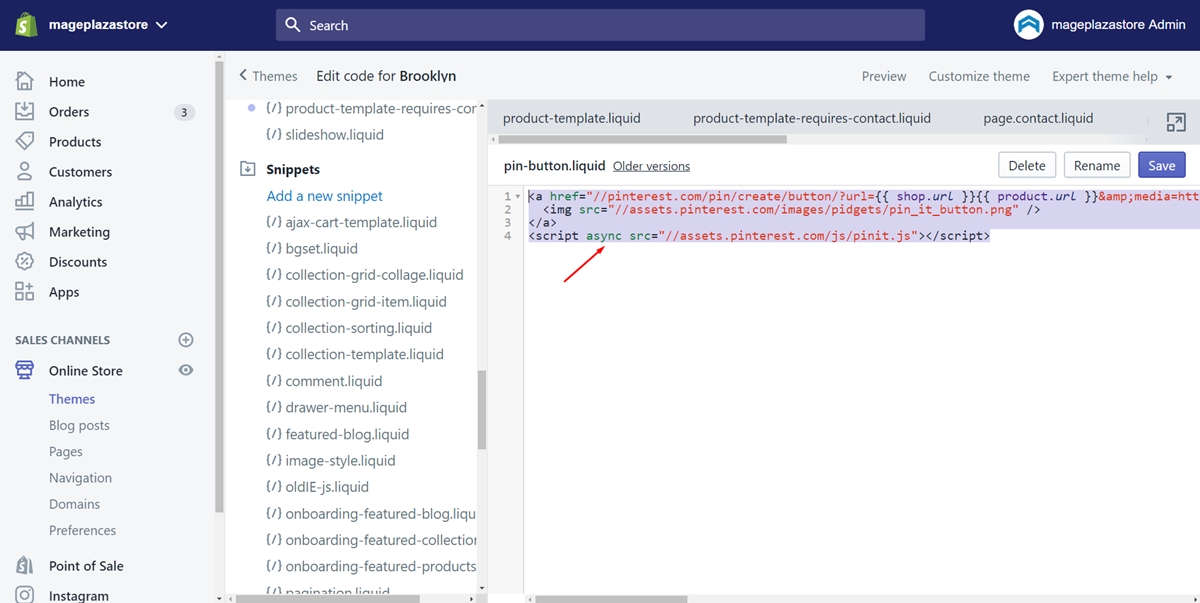
Step 5: Paste the code
Copy the following code. Then, paste it the code editor.


Step 6: Save
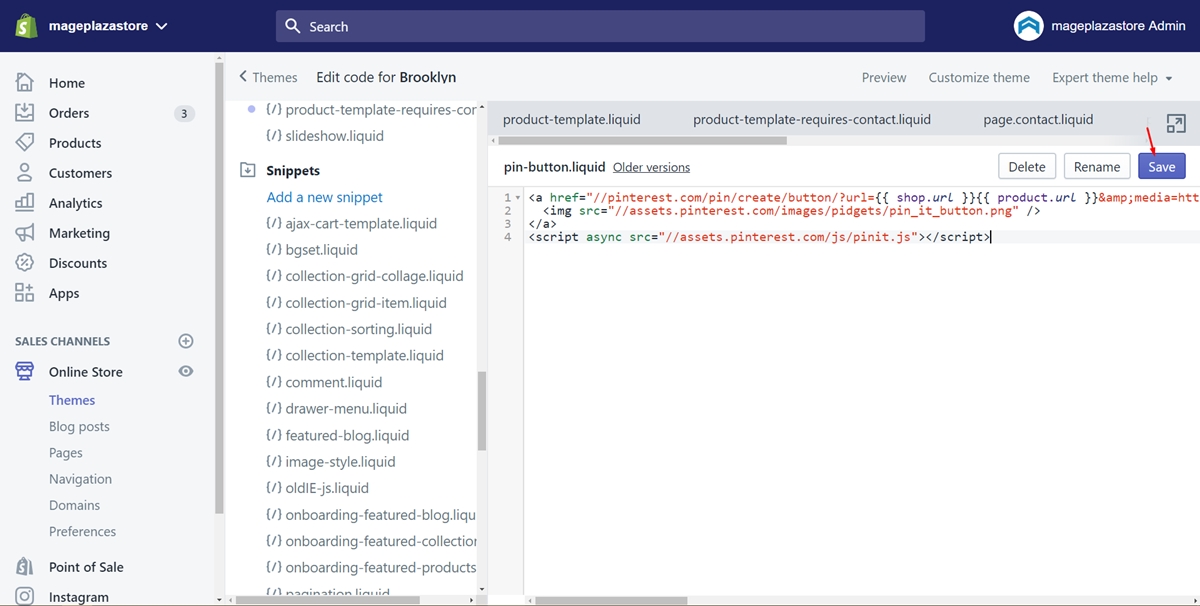
After all, you just need to click Save to finish.
Summary
You have just created a Pinterest snippet on your own as following the transparent instruction above. This post with the hope to bring you beneficial things to insert a Pinterest button to your store in a manual and effective way. It is also illustrated by images. Hope that you will feel interested in reading tutorials like this.