






Instagram has generated an impressive $66.9 billion in revenue and now reaches over 2 billion users worldwide, making it the most profitable channel for mobile-first eCommerce brands. If you’ve ever hesitated to connect your Shopify store to Instagram, now is the time to act. Features like product tagging and Instagram Checkout can reduce buyer decision time by up to 30%, accelerating the path to purchase.
This guide on how to connect Shopify to Instagram walks you through the latest Shopify and Meta setup — from catalog sync to shoppable posts and analytics. Let’s get started!
Why Shopify Instagram Integration is Essential for the E-commerce Industry?
The integration between Shopify and Instagram is a sales unlock. For DTC brands, dropshippers, and mobile-first sellers, this integration creates direct pathways from product discovery to checkout. Below are the most important reasons why:
- Massive buyer reach: Instagram has over 2 billion monthly active users, with 70% using the platform to discover new products weekly.
- High shopping intent: More than 130 million users tap on product tags every month, showing direct buying interest from organic content. This direct interaction shortens the gap between product discovery and purchase.
- Strong conversion potential: Instagram Shopping ads deliver 1.5–3.5% conversion rates, making it one of the highest-performing channels alongside Facebook and Google Ads.
- Faster purchase decisions: 36% of shoppers buy within five hours of discovering a product on Instagram, significantly faster than standard web funnels.
- Proven merchant adoption: Over 25 million businesses now use Instagram Shopping tools, including Shopify-integrated product tagging and in-app checkout.
- Tangible sales impact: Brands connecting Shopify with Instagram report up to 30% shorter sales cycles, especially when using native tagging and Instagram Checkout.
What You Need Before Connecting Shopify to Instagram?
Before integration, ensure that all technical and platform requirements are in place. Missing any of the following can block your ability to activate Instagram Shopping or connect Shopify products to your account:
- Active Shopify store: Your store must be live (without password protection) and include at least one product, complete pricing, inventory, and a functioning checkout gateway.
- Supported country: Shopify–Instagram integration works only in supported regions globally. You must be in one of Meta’s commerce-eligible countries.
- Facebook Business assets:
- A verified Facebook Business Manager account
- A Facebook Page connected to that Business Manager
- A Commerce Account created via Meta Commerce Manager
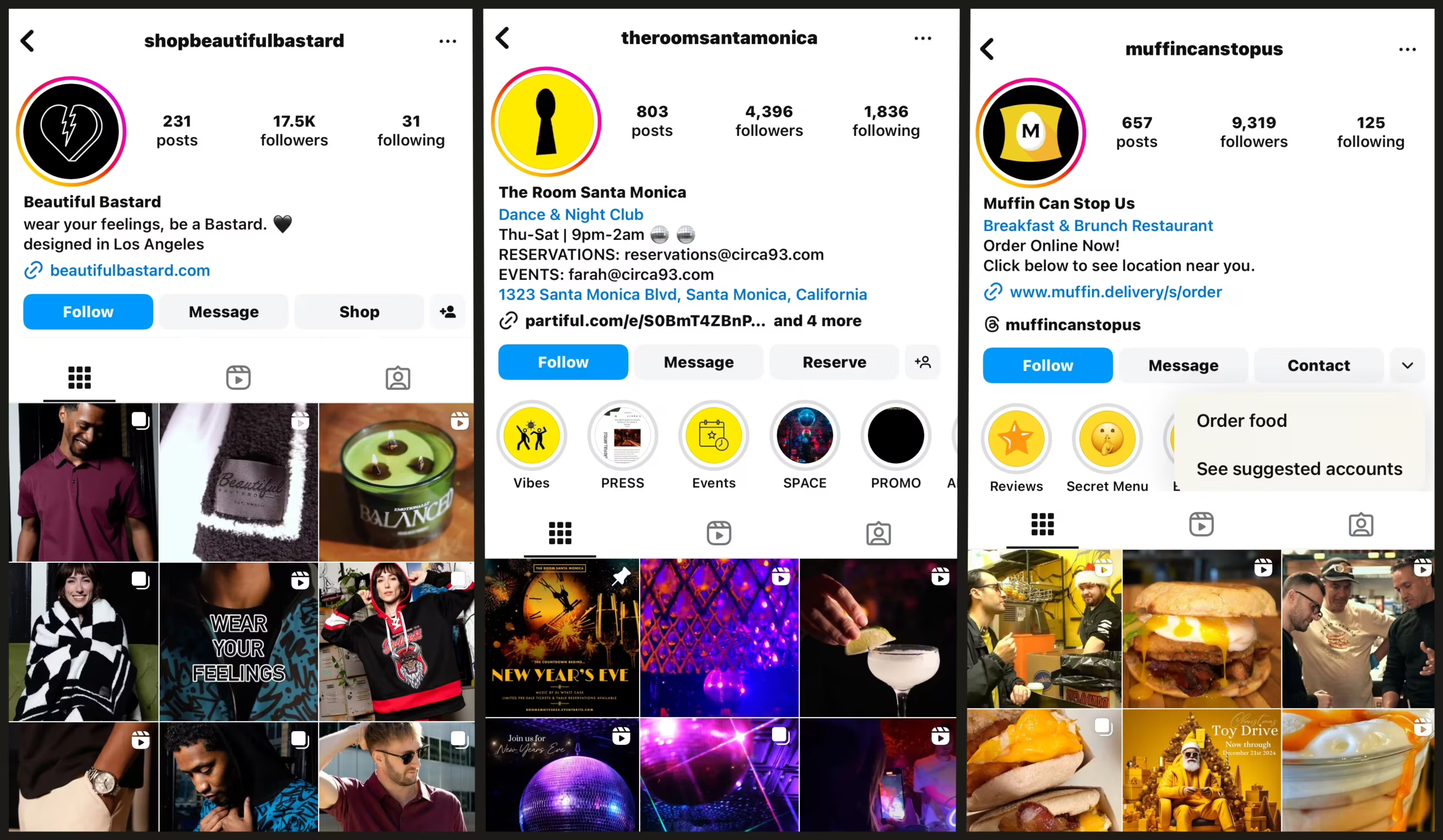
- Instagram Business or Creator account: Personal accounts are not eligible. You must switch to a Business or Creator profile and link it to the same Facebook Business Manager.
- Product catalog in Shopify: Your catalog requires titles, descriptions, pricing, availability, and high-quality images to sync with Commerce Manager.
- Meta’s commerce policy compliance: All products must meet Meta’s product eligibility criteria (e.g., no prohibited items, such as digital downloads, supplements, or services, in certain regions).
- US Checkout requirement (for US merchants): As of April 24, 2024, U.S. stores must enable Checkout on Facebook & Instagram in Commerce Manager. Without it, Shops and product tagging will be disabled.
How to Connect Shopify to Instagram: A Step-by-Step Guide
Follow this process to integrate your Shopify store with Instagram Shopping via the official Facebook & Instagram by Meta sales channel.
Step 1: Switch to an Instagram Business Account
Your account must be a Business profile to access Instagram Shopping.
On Desktop:
- Visit Instagram.com and log in.
- Tap the More icon (☰) in the bottom-left corner → select Settings.
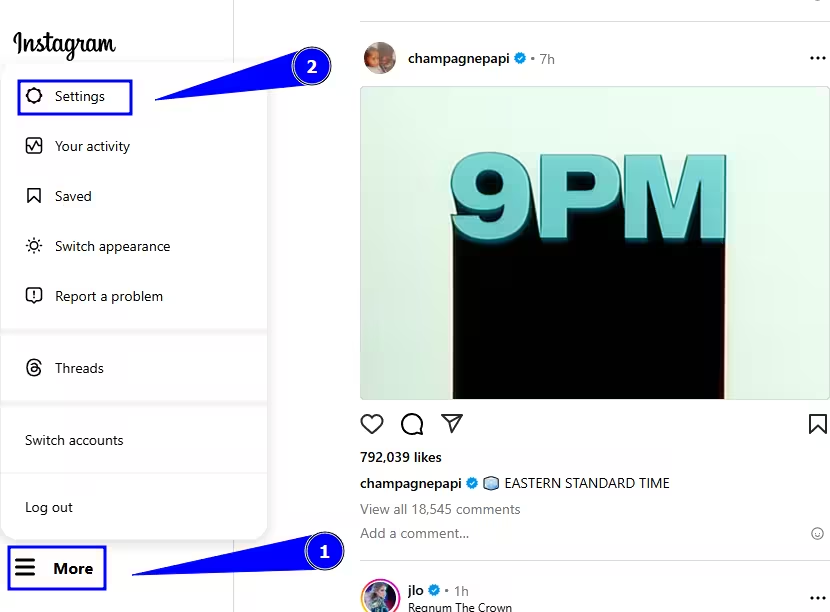
- Scroll to Account Type and Tools under the “For Professionals” section.
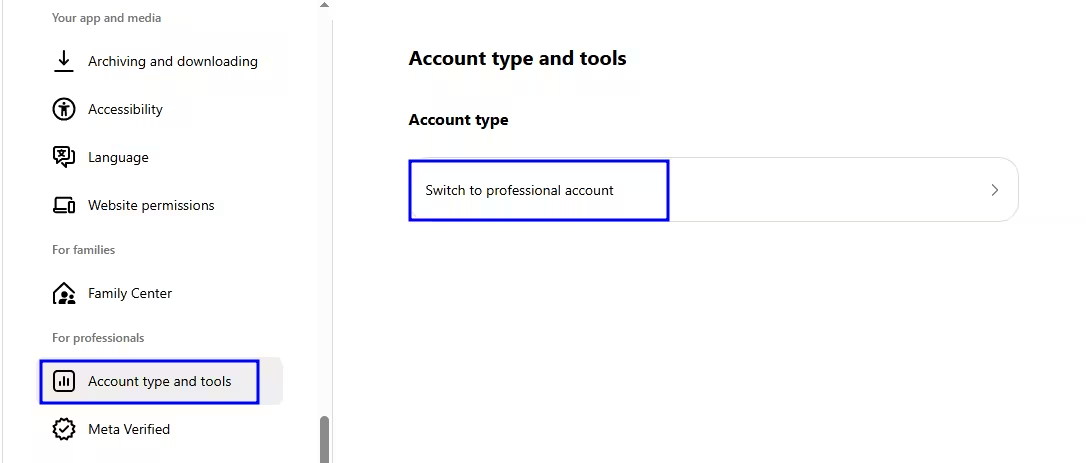
- Click “Switch to professional account,” choose “Business,” and then follow the on-screen instructions.
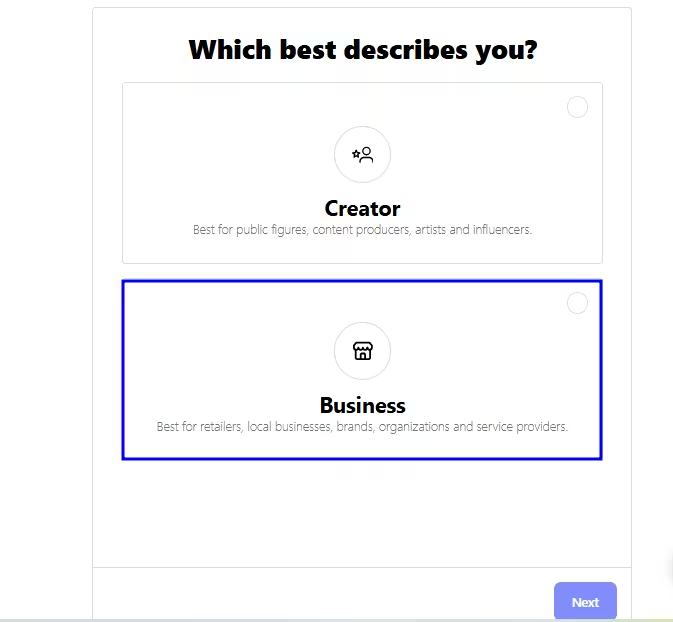
On Mobile:
- Open the Instagram app and go to your profile.
- Tap the menu icon (☰) in the top-right → Settings and privacy.
- Select “Account type and tools” → tap Switch to professional account.
- Choose “Business” and complete the prompts, including business category and contact info.
Step 2: Connect Your Instagram Business Account to a Facebook Page
This connection is required to use Meta's Commerce Manager with Shopify.
On Desktop:
- Open Meta Business Suite and select your Facebook Page.
- In the left menu, go to Get started→ Connect Instagram.
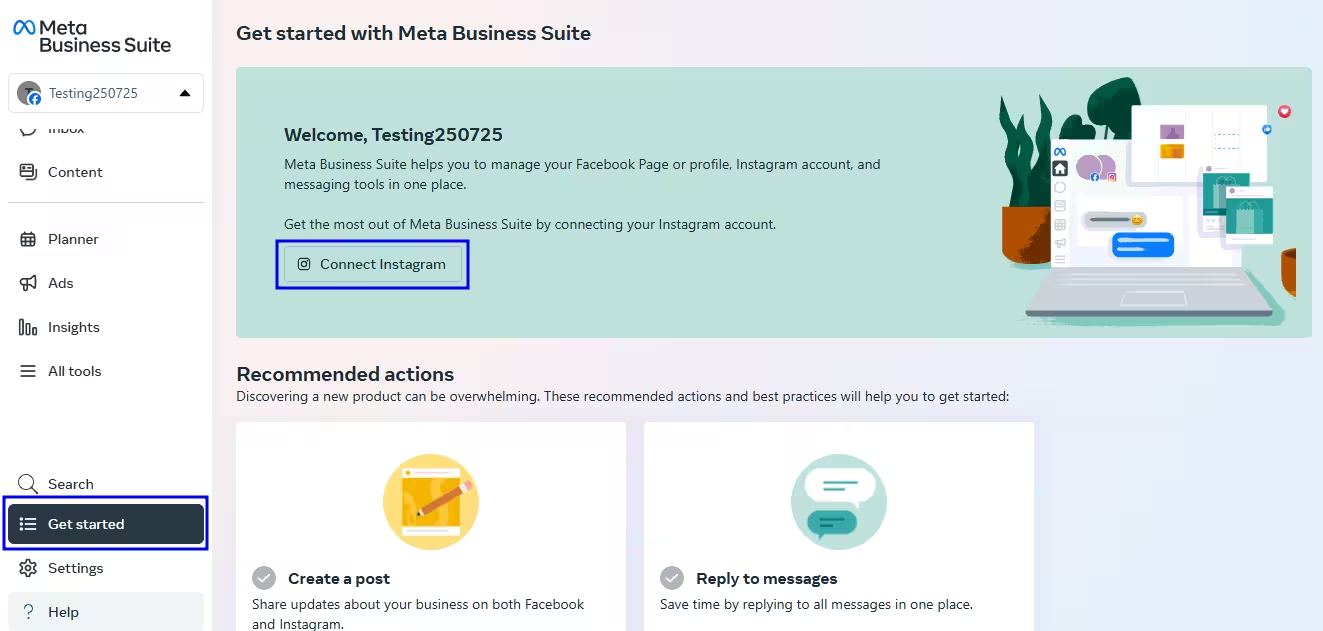
- Log in and authorize.
On Mobile:
- In the Facebook app, navigate to your business Page.
- Open the menu by tapping the three horizontal lines, then navigate to Meta Business Suite.
- Go to Settings → Linked accounts → Instagram.
- Tap “Connect Instagram” and log in to your Instagram Business account.
Step 3: Add the Facebook & Instagram Sales Channel in Shopify
This enables product catalog sync and checkout functionality.
In Shopify Admin:
- Log in and go to Settings → Apps and sales channels.
- Click the Shopify App Store.
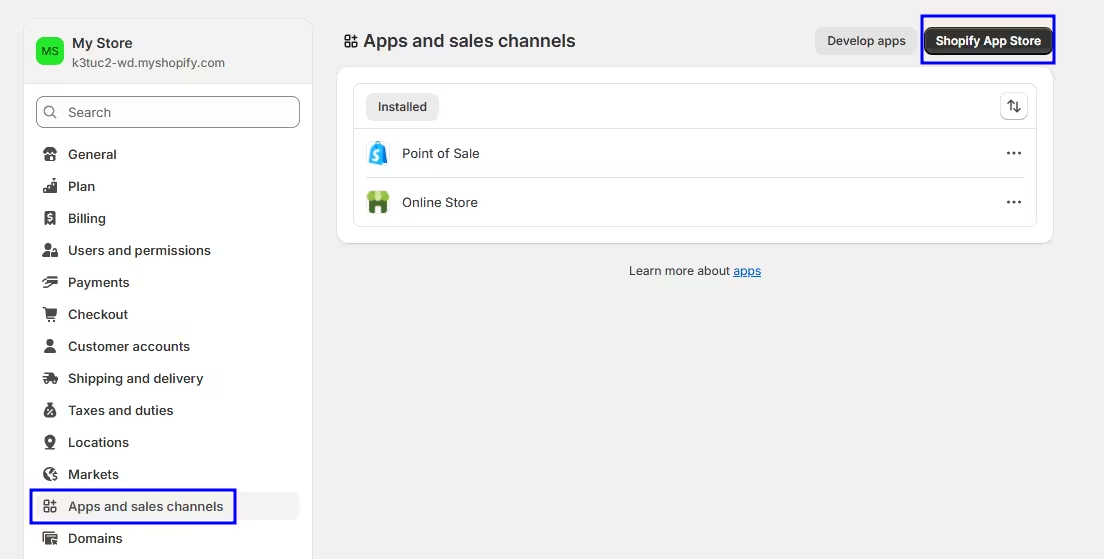
- Search for Facebook & Instagram by Meta, then select “Install.”
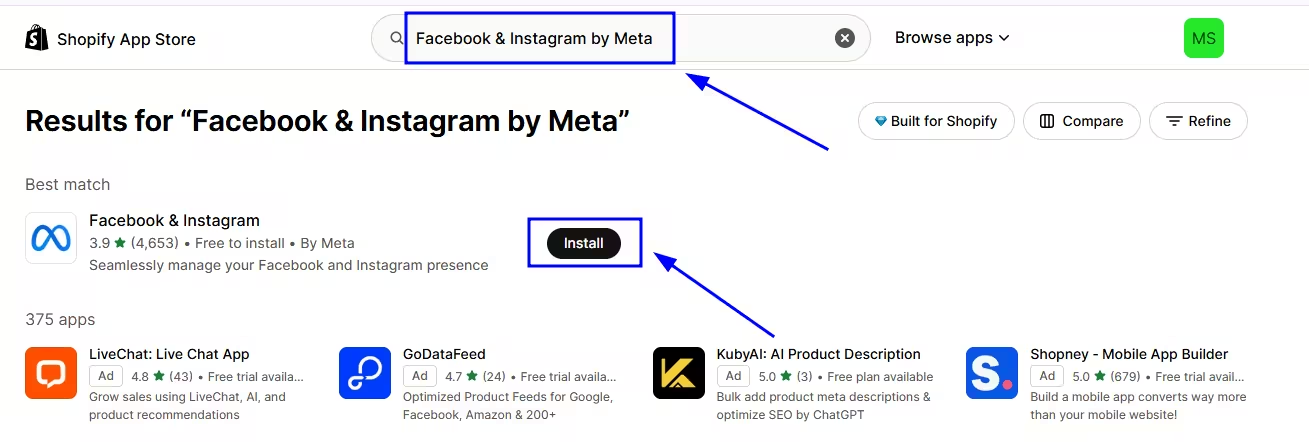
- Follow the prompts to install the channel and begin the setup.
Step 4: Connect Your Facebook Account and Assets to Shopify
To enable Instagram Shopping through Shopify, you need to connect your Facebook Business Manager, Facebook Page, Instagram account, and Commerce account to Shopify’s Facebook & Instagram sales channel.
- In your Shopify admin, go to Settings → Apps and sales channels → click Facebook & Instagram by Meta.
- Click “Get started.”
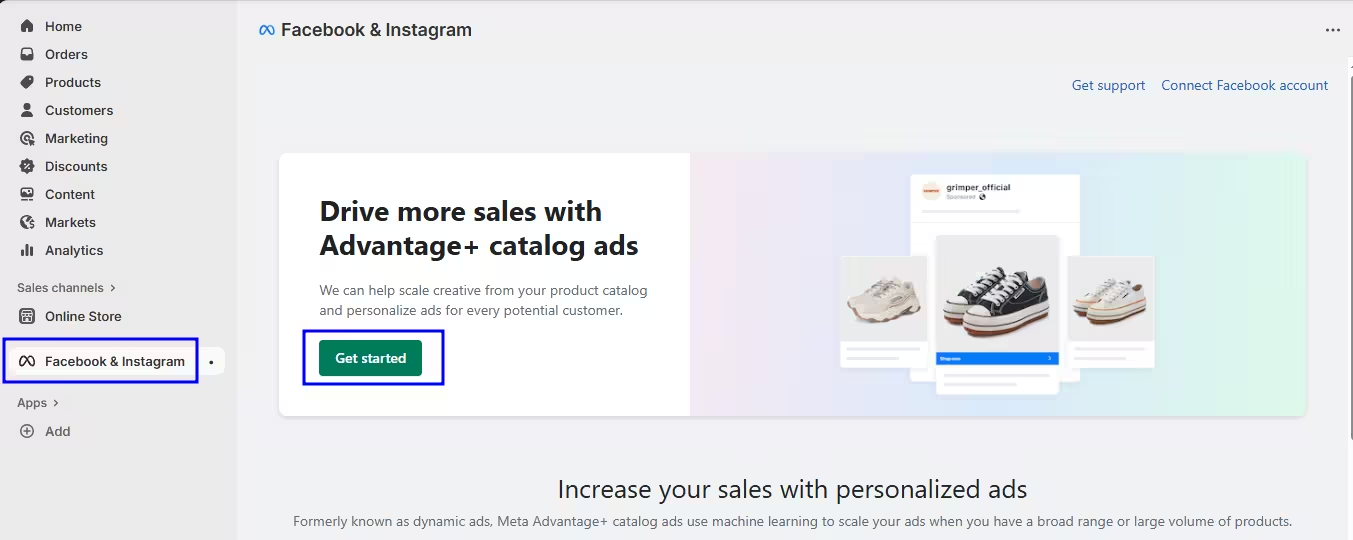
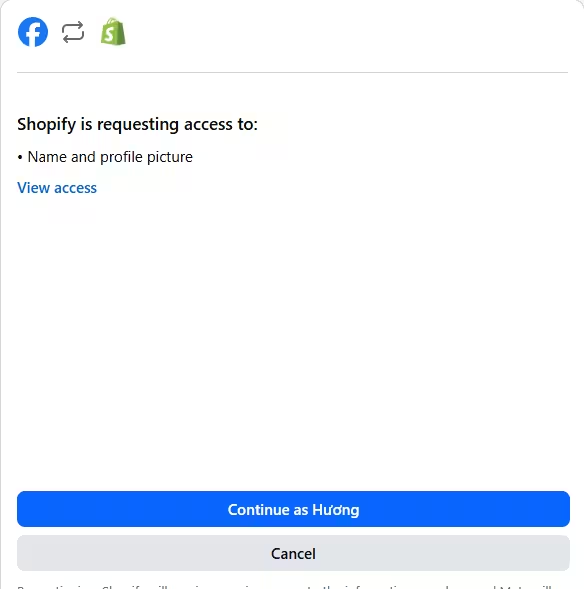
- Connect your Facebook account to get started by selecting “Connect Account.” Log in using your Meta Business Manager credentials.
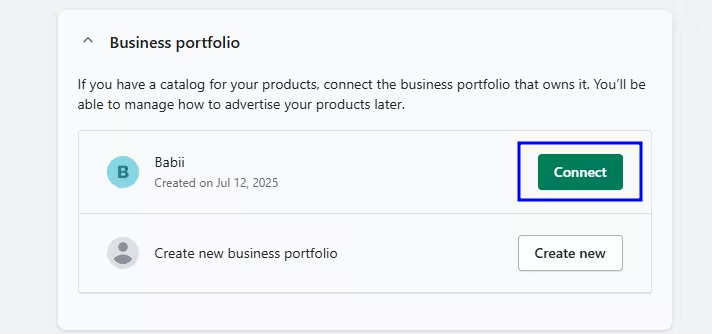
- Scroll to Business Portfolio and select your business portfolio. Click “Connect” to initiate the link.
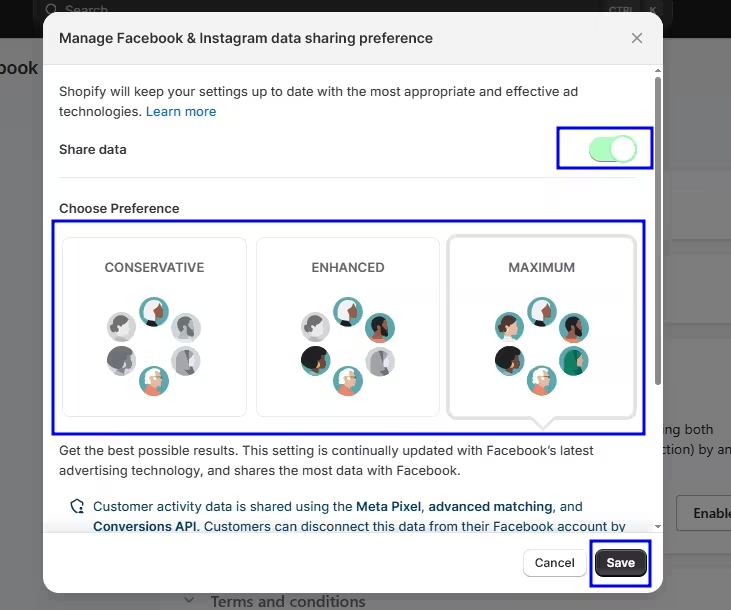
- Go to Data sharing, toggle Share data ON, select your preferred level (Conservative, Enhanced, or Maximum), then click “Save.”
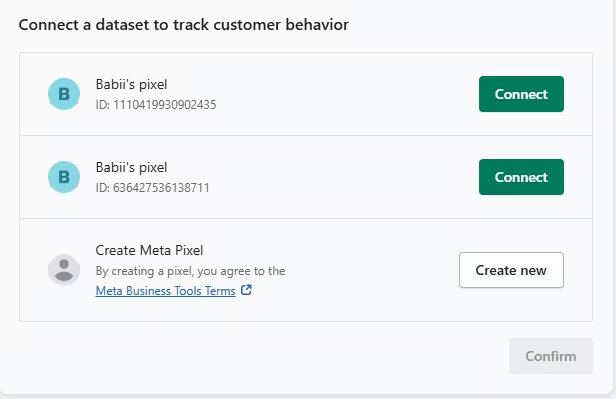
- Under Connect a dataset to track customer behavior, choose a Meta Pixel or create a new one, click “Connect,” then click “Confirm.”
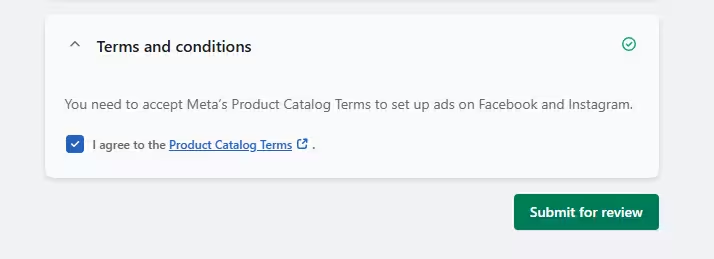
- Scroll to Terms and Conditions, check the box to agree to Meta's Product Catalog Terms, then click “Submit for review.”
How to Add Shopify Products to Instagram
Once your Shopify store is connected to the Facebook & Instagram sales channel and approved by Meta, you can display and tag products on Instagram. Follow these key actions to ensure your products are listed and available for tagging.
Step 1: Make Products Available to Instagram
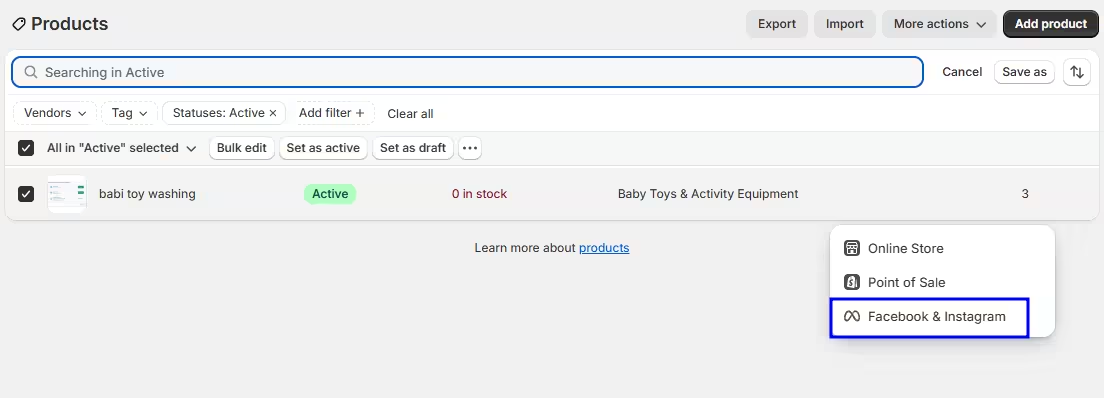
To sync individual products from Shopify to Instagram:
- In your Shopify admin, go to the Facebook & Instagram app.
- Click “Publish product” under Product Status.
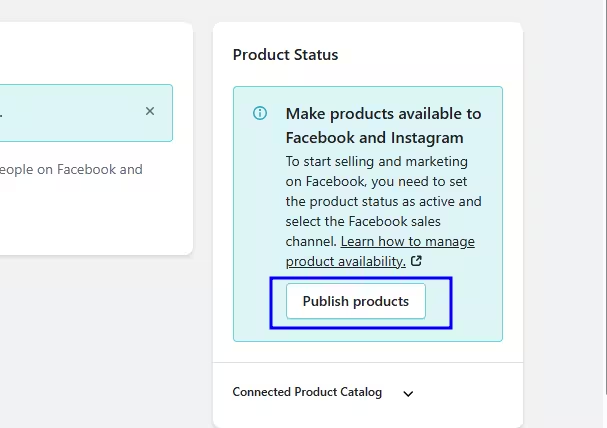
Shopify will automatically transfer your product catalog to Instagram.
Step 2: Tag Products in Instagram Content
Once products are synced, you can tag them directly in Instagram content:
- Posts: When creating a post, select “Tag products,” then search and tag the item.
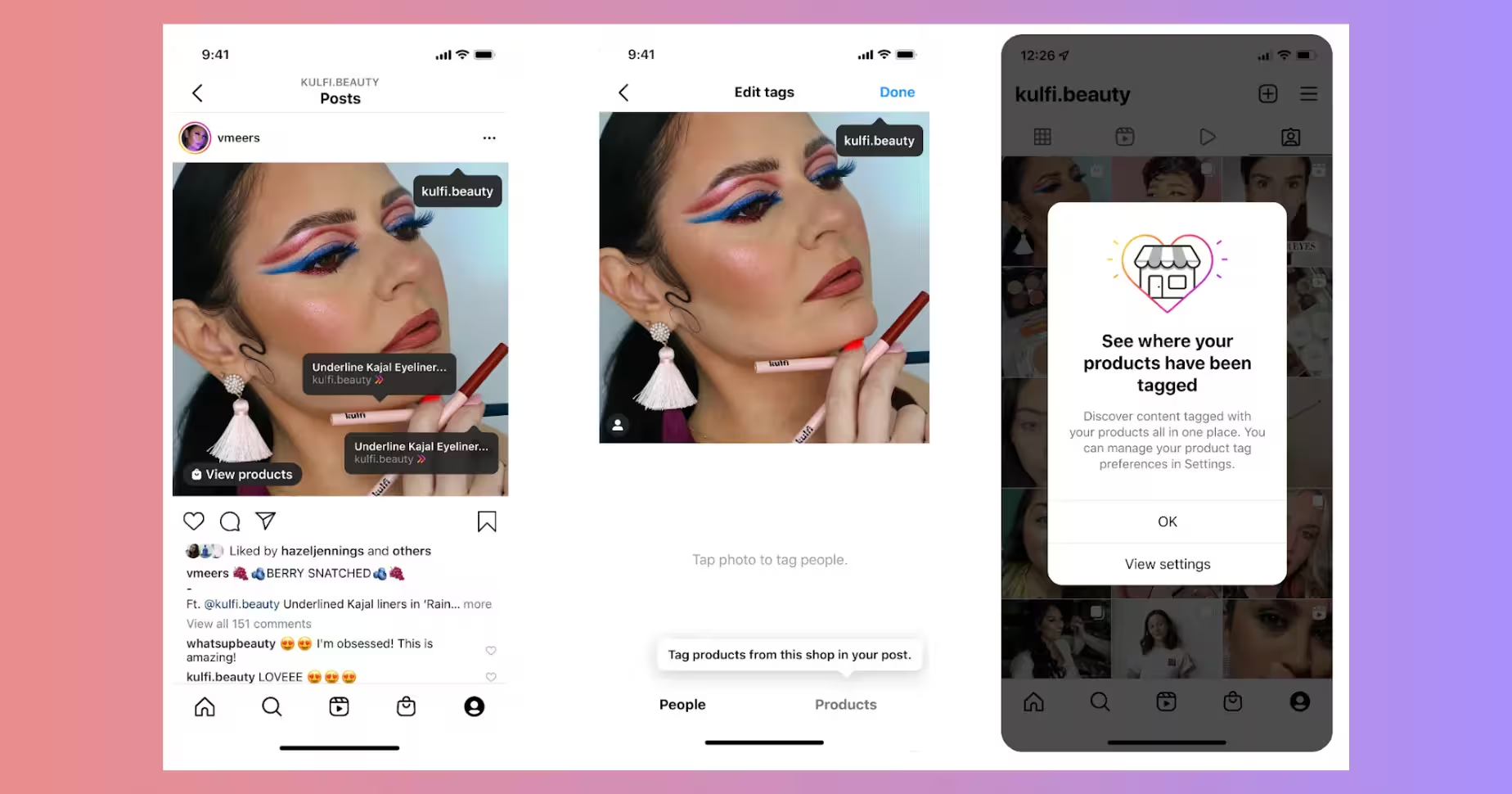
- Stories: Add a Product sticker, then search for the synced product.
- Reels: After editing, tap Tag products, then choose from your catalog.
Each image can include up to 5 product tags; carousel posts can include up to 20.
How to Sell on Instagram with Shopify
After successfully connecting Shopify to Instagram through the Facebook & Instagram sales channel, merchants can unlock powerful selling features. These include shoppable posts, product tagging in Stories and Reels, and streamlined in-app checkout (available in select regions).
To start selling:
- Sync your Shopify product catalog to Instagram Commerce Manager
- Tag products directly in your organic and paid content
- Customize your Instagram storefront to reflect your brand
For a complete breakdown of strategies, ad formats, and tools, explore our full guide to selling with Shopify and Instagram.
Analytics and Tracking of Shopify Store on Instagram
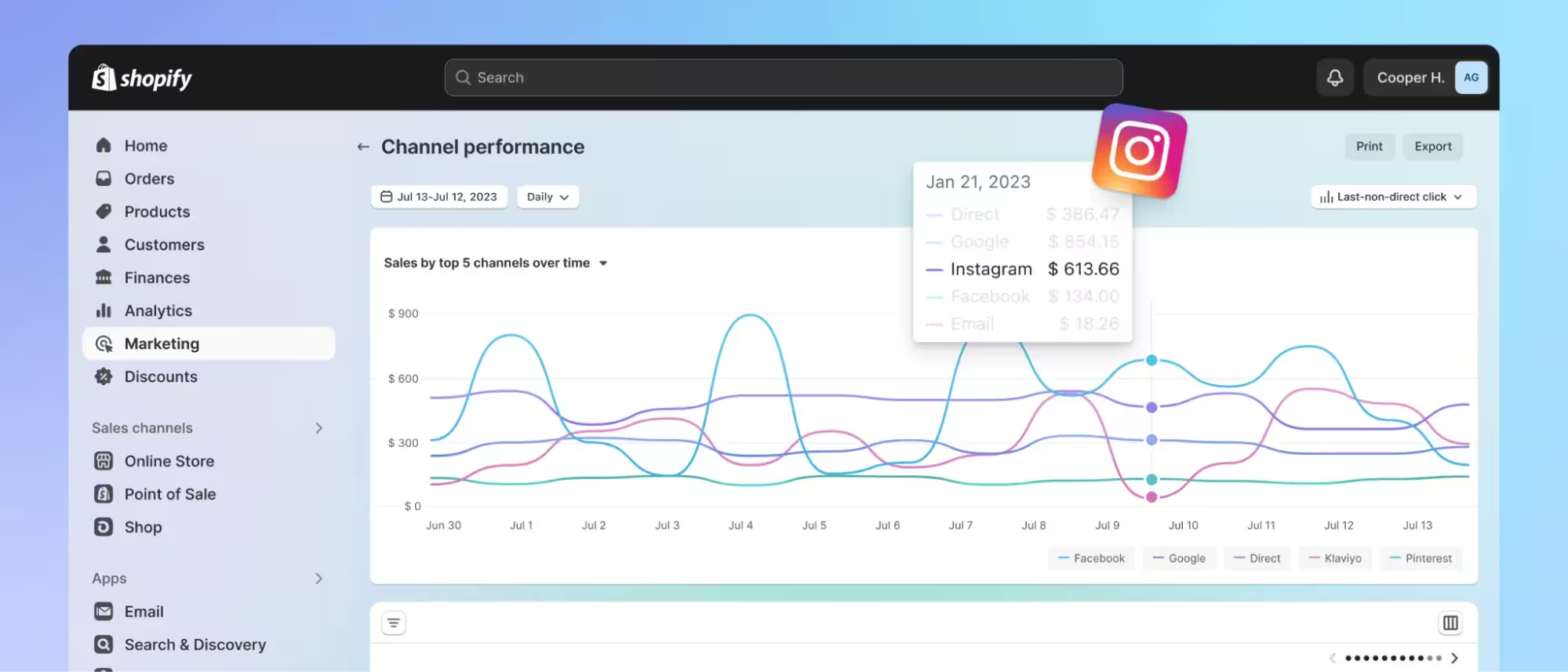
To maximize ROI from your Shopify and Instagram setup, robust analytics and tracking are essential. These insights help you monitor what engages audiences, drives traffic, and converts into sales.
Core metrics to track:
- Content performance (Impressions & Reach): Track how many users see your shoppable posts, Reels, and Stories through Instagram Insights. This reveals spotlight content and optimizes visibility. Reach data is available for up to 90 days on business profiles.
- Product engagement (Product views & tag clicks): Using Commerce Manager’s Shopping Insights, you can see which tagged products get viewed or clicked, essential for highlighting top-performing SKUs.
- Shopify attribution (Traffic & conversions): The Shopify Admin’s Sales by Traffic Source report enables you to distinguish Instagram-referred sales from other channels, providing a clear ROI on Instagram integration.
- Conversion metrics (Add-to-cart, purchases): Link Instagram product tags directly to your checkout-enabled Shopify catalog. Commerce Manager reports conversions for tagged posts and in-app purchases.
- Customer insights (Demographics & timing): Use Instagram Insights to understand follower age, gender, location, and active times. This helps schedule posts and tailor content for high-performing segments.
- Ad performance comparison: Within Meta Business Suite, compare organic shopping performance with paid campaigns—metrics such as click-through rates (CTR) and cost-per-conversion help optimize media spend.
How to put these analytics into action:
- Set clear KPIs: Choose priority metrics, such as shop views, product clicks, conversions, or AOV.
- Connect tools: Ensure the Facebook & Instagram by Meta app is installed and Commerce Manager is linked to Shopify.
- Review weekly: Look at both Instagram and Shopify reports to track performance trends.
- Optimize content strategy: Double down on formats and posting times that drive the most engagement or purchases.
- Adjust ad funnel: Use insights to refine audience targeting, creatives, and spend allocation.
Successful eCommerce Stores After Shopify Instagram Integration
MVMT Watches
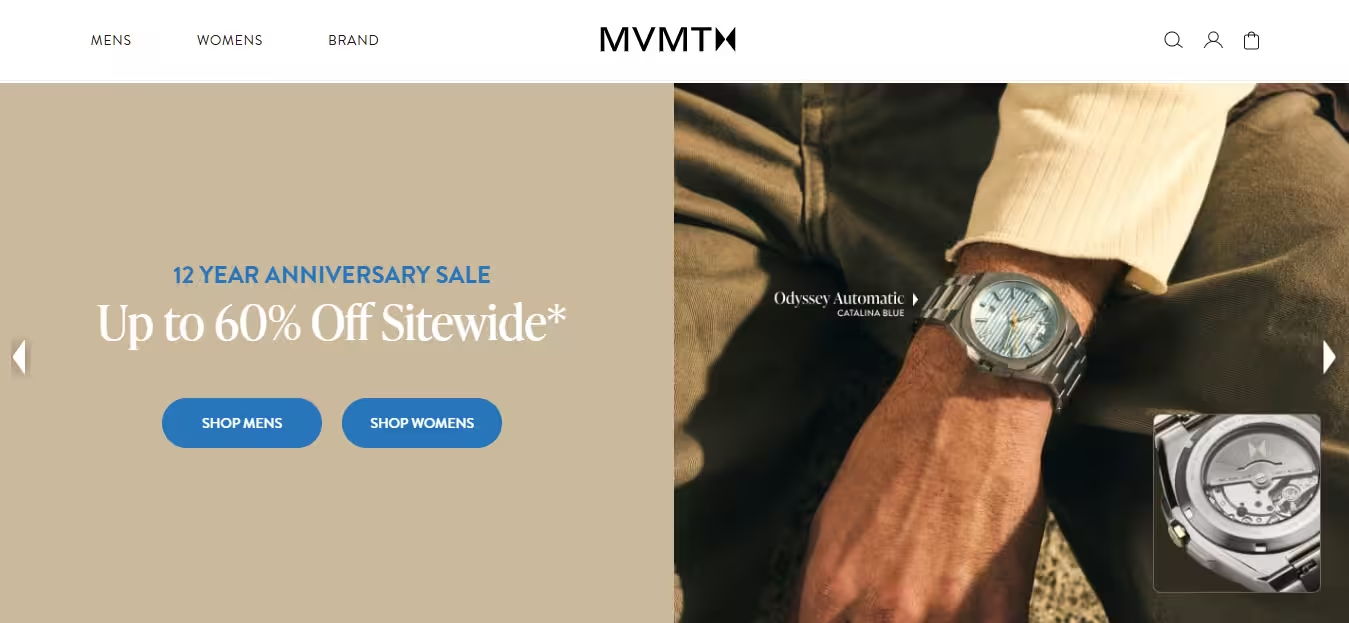
Before fully connecting Shopify to Instagram, MVMT Watches relied heavily on external links and bio redirects to convert traffic. Despite strong branding and a growing Instagram fanbase, the absence of native shopping features created friction that limited mobile conversions.
The shift came when MVMT integrated its Shopify catalog with Instagram Shopping via Meta. Product tagging and in-app browsing allowed users to move from discovery to purchase with fewer clicks. Following the integration, the brand reported a 60% lift in sales and scaled its Instagram audience to over 1.5 million followers.
Key lessons for merchants
- Visual-driven content strategy
- Affiliate-linked micro-influencers
- Shopify-Instagram catalog sync
- High-quality UGC repurposing
- Branded hashtags (#jointhemvmt)
- Mobile-first optimization
- Hashtag-powered community building
- Flash-sale & discount tag activation
- Shopify-powered influencer tracking
Kylie Cosmetics
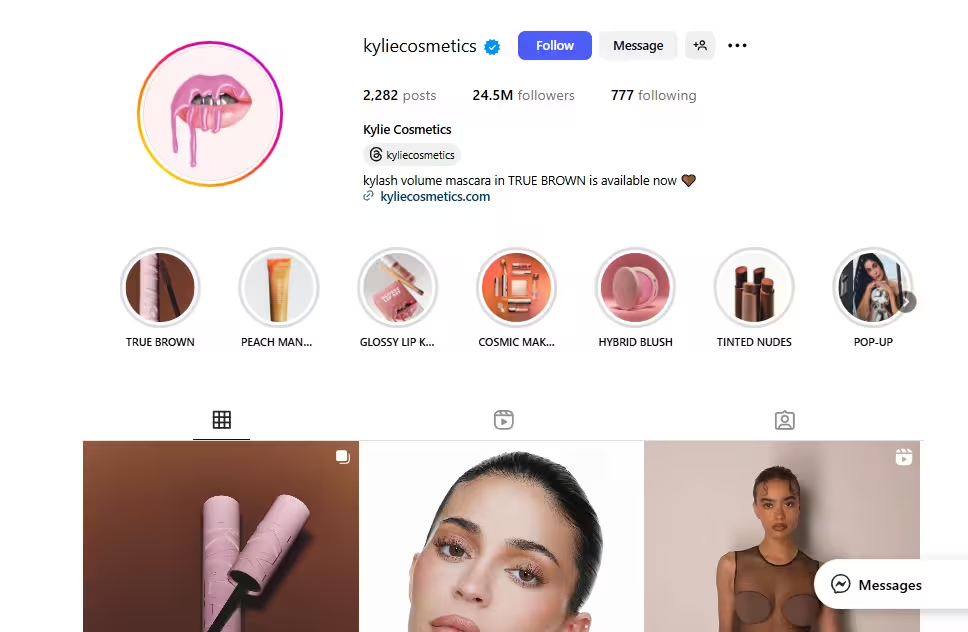
Kylie Cosmetics started as a Shopify-based DTC brand with viral traction, but early on, it relied on external links and flash-sale urgency to drive purchases. Without integrated Instagram Shopping, the brand faced friction between product discovery and conversion, especially on mobile.
Upon integrating Shopify with Instagram via the Meta channel, Kylie Cosmetics enabled product tagging directly in posts, Stories, and Reels. This seamless experience contributed to its rapid growth into a $1.2 billion global brand, shipping to over 170 countries through Shopify’s platform and Instagram’s storefront features.
Key lessons for merchants
- Frictionless product discovery with Instagram shoppable tags
- Brand consistency across the Shopify storefront and Instagram feed
- Product bundling to drive higher AOV and promote SKUs
- Back-in-stock alerts to re-engage warm traffic
- “Compare at price” strategy to highlight perceived value
- Scalable infrastructure for global fulfillment
- Mobile-first optimization using responsive Shopify themes
- Simplified UX that reduces steps from browse to buy
Gymshark
Before integrating Shopify with Instagram, Gymshark leaned on influencer shoutouts and bio links to drive mobile traffic to product pages. While effective initially, this indirect funnel introduced unnecessary steps from product discovery to checkout, particularly for mobile-centric audiences.
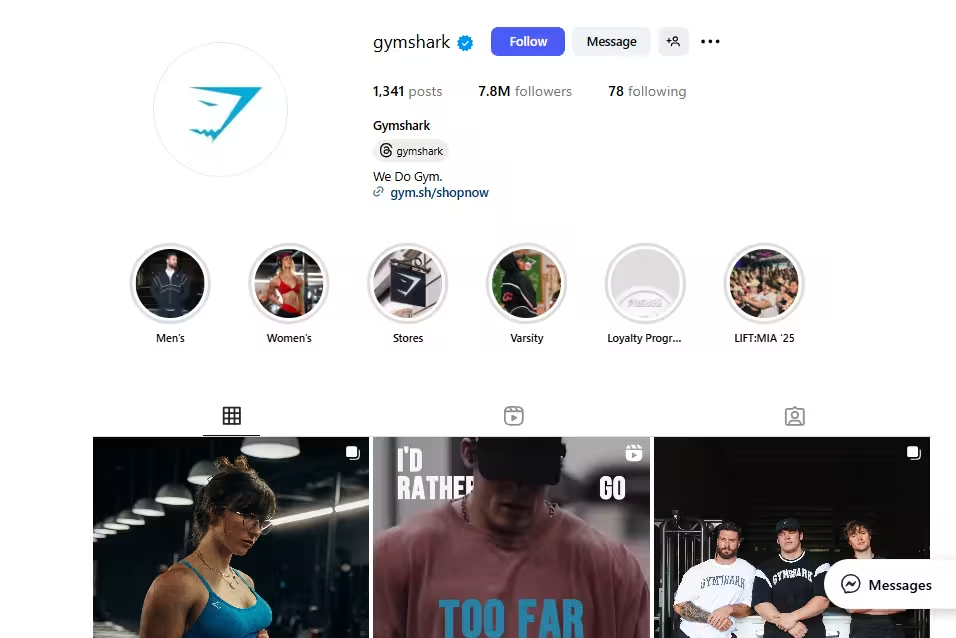
After migrating to Shopify Plus and activating Instagram Shopping via the Meta channel, Gymshark streamlined its mobile conversion path with tagged products and in-app browsing. The brand reported over £41 million (~$51 million) in Black Friday revenue and has maintained high-growth momentum by synchronizing its Instagram strategy with Shopify infrastructure.
Key lessons for merchants
- Influencer-driven product discovery
- Instagram Shopping tag optimization
- Seamless mobile browsing experience
- Shopify Plus scalability during peak sales
- Campaign-based product collection curation
- Consistent brand storytelling across channels
- Automated product-sync via Meta Commerce Manager
- Strategic drops via Instagram to drive urgency
- Cart-to-checkout UX simplification on mobile
Troubleshooting Common Issues When Connecting Shopify to Instagram
While the Shopify–Instagram integration via Meta is mostly seamless, merchants can encounter technical or policy-related roadblocks. Here are the most common issues, along with actionable solutions:
- Instagram account not eligible for shopping:
Cause: Using a personal account or missing business verification.
Solution: Switch to an Instagram Business account and connect it to a verified Facebook Business Manager. Ensure your business complies with Meta’s Commerce Eligibility Requirements. - Product catalog not syncing from Shopify to Meta:
Cause: Missing or incorrectly configured product fields (e.g., availability, description, images).
Solution: Use the Facebook & Instagram by Meta app on Shopify. Check that all products are “available” on the Facebook channel and meet Meta's catalog standards. - Instagram Shopping option not appearing in settings:
Cause: Region not supported or shop not approved.
Solution: Confirm Instagram Shopping is available in your country. Check your Commerce Account status in Meta Commerce Manager and submit an appeal if it’s been rejected. - “Product Tagging Not Available” error:
Cause: Product tagging hasn’t been reviewed or approved by Meta.
Solution: Go to your Instagram app → Settings → Creator/Business → Shopping. Follow the approval process or reapply if tagging was previously rejected. - Facebook Commerce Account disconnected from Shopify:
Cause: Unauthorized changes in Business Manager or expired token.
Solution: Reconnect the Facebook Commerce Account in the Shopify admin under Sales Channels > Facebook & Instagram. Reauthorize all permissions and roles. - Shop URL mismatch or domain not verified
Cause: Shopify store domain not verified in Facebook Business Manager.
Solution: Go to Business Settings > Brand Safety > Domains in Meta, then verify your domain via DNS or HTML upload. - Instagram app not showing Shopify-connected catalog:
Cause: Logged into the wrong Meta Business account on mobile.
Solution: Log out and re-login to the Instagram and Facebook apps with the correct credentials tied to your Shopify integration.
Best Practices to Optimize Instagram for Shopify Stores

To fully leverage the Shopify–Instagram integration and convert followers into buyers, merchants should follow these proven strategies:
- Use native product tagging in all post formats: Tag products directly in Reels, Stories, and carousel posts to drive seamless in-app shopping. Ensure each tag leads to an active Shopify product page.
- Maintain consistent branding across Instagram and Shopify: Match visuals, tone, and messaging to create a unified shopping experience. Use the same product imagery and naming conventions across platforms.
- Leverage Instagram Reels for product discovery: Short-form videos increase reach and engagement. Feature behind-the-scenes content, customer testimonials, and product usage demos to boost visibility.
- Run dynamic ads retargeting Shopify visitors: Use Meta Ads Manager to retarget users who’ve browsed or abandoned carts on your Shopify store. Link to Instagram product pages or use “Shop Now” CTAs.
- Optimize product catalogs for Instagram feed: Use high-resolution images with minimal text overlay. Prioritize bestsellers and new arrivals in your Instagram Shop layout.
- Promote user-generated content (UGC): Encourage customers to tag your brand and feature real-life photos on both Instagram and your Shopify homepage. UGC builds trust and improves conversions.
- Use “Compare at price” to highlight deals: Display price drops clearly using Shopify’s pricing features. Instagram shoppers respond well to visible savings.
- Use branded hashtags and community engagement: Create a hashtag strategy (e.g. #yourbrandstyle, #shopyourbrand) and engage with tagged posts to foster loyalty and brand visibility.
- Activate Instagram Shopping only for in-stock items: Ensure real-time inventory sync between Shopify and Instagram to avoid poor user experience and policy violations.
How to Connect Shopify to Instagram: FAQs
Final Thoughts
Integrating Shopify with Instagram empowers merchants to streamline product discovery, drive mobile conversions, and enhance brand visibility through shoppable content. When executed properly, this connection can serve as a powerful growth channel across both platforms.
Frequently Asked Questions
How to Add Shopify Link to Instagram Bio
Log in to Instagram > Go to your profile > Tap “Edit Profile” > Paste your Shopify store link in the Website field > Tap “Done.” Your store link is now clickable in your bio.
Can you connect Shopify to Instagram without Facebook?
No. Instagram Shopping requires a Facebook Business account with a connected Commerce Manager to sync your Shopify product catalog.
How long does Instagram Shopping approval take?
It typically takes up to 24–48 hours, but in some cases, Meta may take longer depending on account review and product eligibility.
Do I need a Facebook page to connect Shopify to Instagram?
Yes. A published Facebook Business Page is mandatory to enable the Facebook & Instagram channel and access Commerce Manager tools.
What are the best Shopify apps for Instagram?
Popular choices include:
- Facebook & Instagram (official by Shopify & Meta)
- Instafeed – Instagram Feed
- Sauce – Shoppable Instagram
- Tagshop – Shoppable Galleries
How to market a Shopify store on Instagram?
Use Instagram Shopping, product tagging, Reels, Stories, influencer collaborations, and UGC to drive traffic to your Shopify store.
How do I link social media to Shopify?
Go to Settings > Apps and sales channels in Shopify, then install channels like Facebook & Instagram to connect your social accounts.
How do I access adding my products from my Shopify to Facebook and Instagram?
Install the Facebook & Instagram sales channel in Shopify, connect your Facebook account, and sync your product catalog.
Is it better to sell on Instagram or Shopify?
Shopify offers a full storefront and control, while Instagram boosts discovery and mobile conversions. The best results come from using both together.
Does Shopify link to Instagram?
Yes. Shopify links to Instagram via the official Facebook & Instagram app, enabling product tagging and in-app checkout.